
 This online help page is dedicated to the SurgeONE.ai Organization Hierarchy screen and its associated functionalities.
The Organization Hierarchy provides a complete visual representation of all companies and their relationships, based on the structural configuration of the parent organization and its sub firm(s).
This online help page is dedicated to the SurgeONE.ai Organization Hierarchy screen and its associated functionalities.
The Organization Hierarchy provides a complete visual representation of all companies and their relationships, based on the structural configuration of the parent organization and its sub firm(s).
With the enhanced navigation experience, users are automatically redirected to their primary company after login and can seamlessly switch between companies using this hierarchy view without requiring multiple logins.
The accessibility and functionalities of the different sections of this page are dependent on the role-based access controls / permissions set for the logged-in user. The Can Access Settings permission needs to be enabled. For more details refer to the Roles online help.
1. Navigating to the Organization Hierarchy
Get to know how to access the Organization Hierarchy page from the application menu, which serves as the starting point for viewing and managing company structures.
Click on the Settings menu and then select the Org Hierarchy option to view the hierarchical structure of all firms associated with your account.
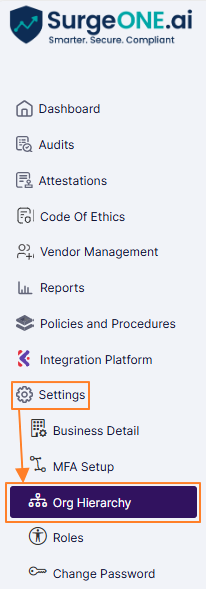 Fig: 1 - Settings menu > Org Hierarchy menu option
After selecting this option, the Organization Hierarchy page loads, displaying a structured visual layout of companies. This page is the central hub for:
- Viewing company structure
- Switching companies
- Accessing employee hierarchy
Key features of Organization Hierarchy page:
- Faster access: Automatic login redirection to primary company
- Seamless switching: Instantly move between companies without logging out
- Improved visibility: Clear graphical representation of organizational relationships
- Efficient search: Quickly locate companies and employees
2. Viewing the Organization Hierarchy View
This section describes how the Organization Hierarchy visually represents companies as interconnected nodes, helping users understand corporate structure and relationships at a glance.
Each company is represented as an interactive block (card), and connecting lines indicate parent-child relationships between organizations. This allows users to easily understand the corporate structure, including parent organizations and their subsidiaries or branches.
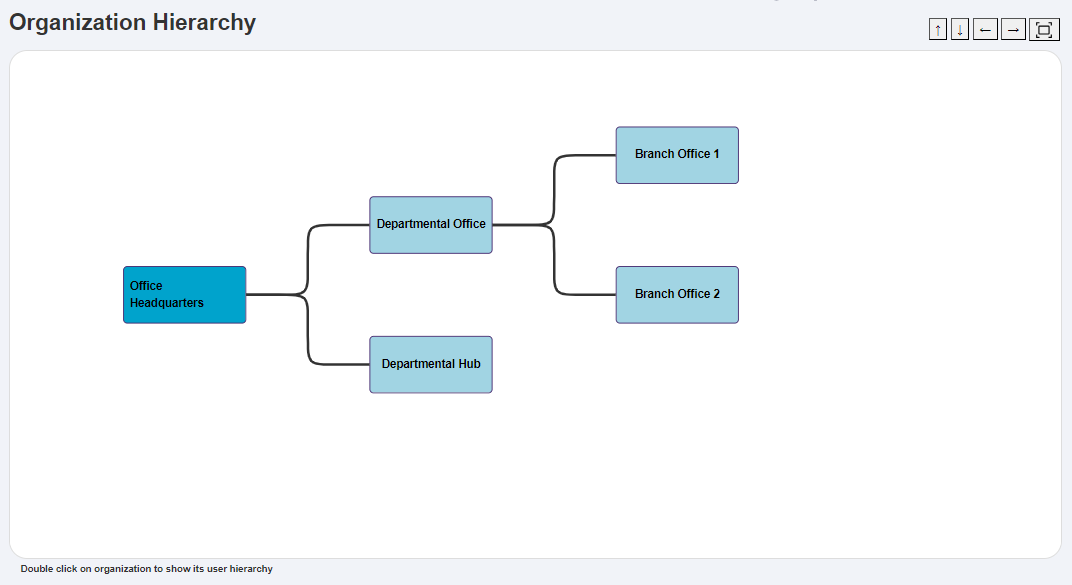 Fig: 2 - Organization Hierarchy view
3. Searching within Organization Hierarchy View
Understand how to use the search functionality to quickly locate specific companies within the hierarchy, especially in large organizational structures.
A search bar is available to quickly locate a specific company. Users can drag and zoom within the view to explore large or complex organizational structures.
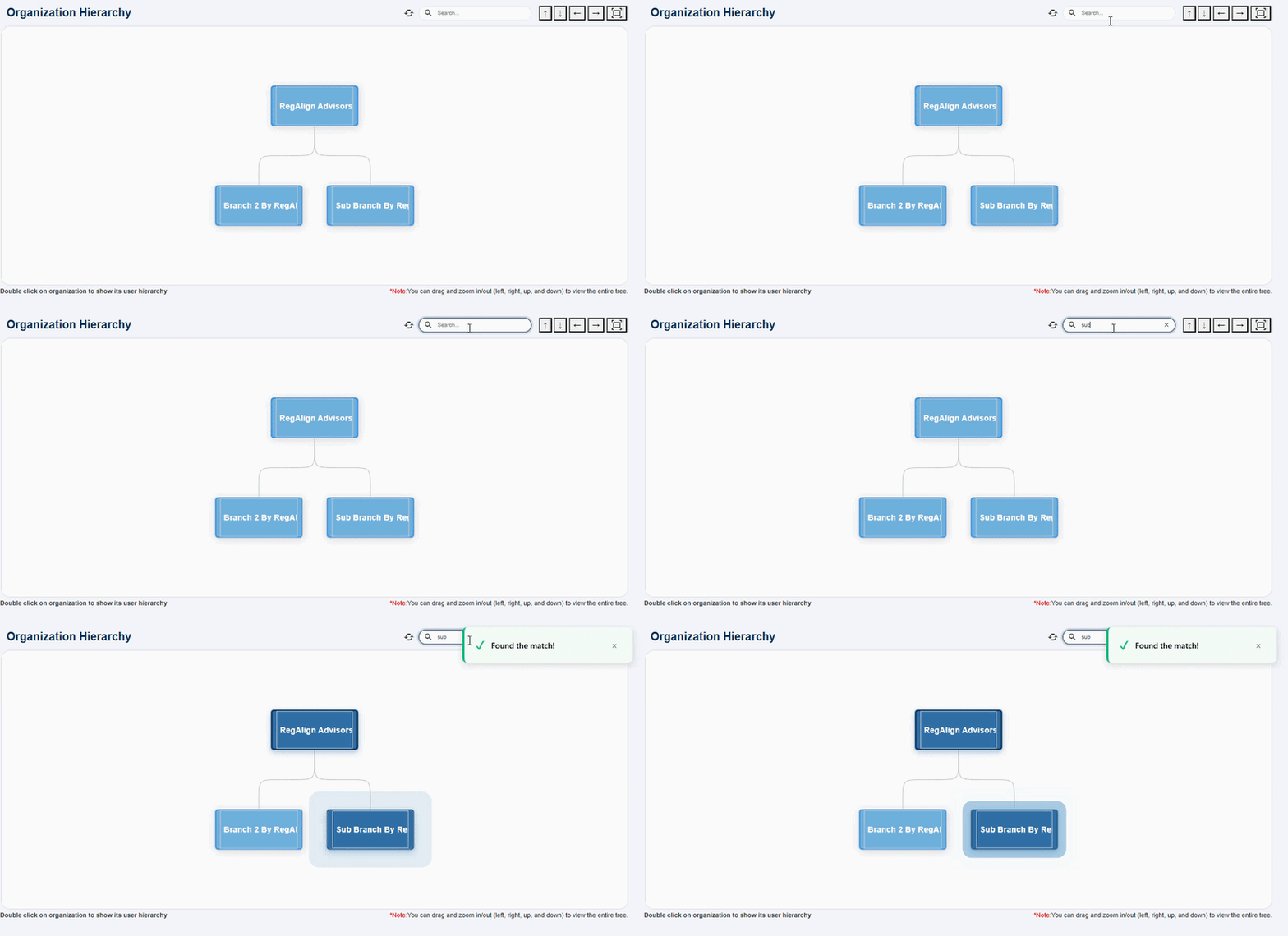 Fig: 3 - Organization Hierarchy search facility
4. Navigating and Adjusting the View
This section covers the navigation tools available in the hierarchy view, allowing users to adjust orientation, zoom levels, and layout for better exploration.
Various directional and zoom icons are available at the top-right corner of the screen, allowing users to:
- Top to bottom (default), Bottom to Top, Left to right, Right to left buttons
- Mouse scroll control - Zoom in and out
- Fit to Screen button
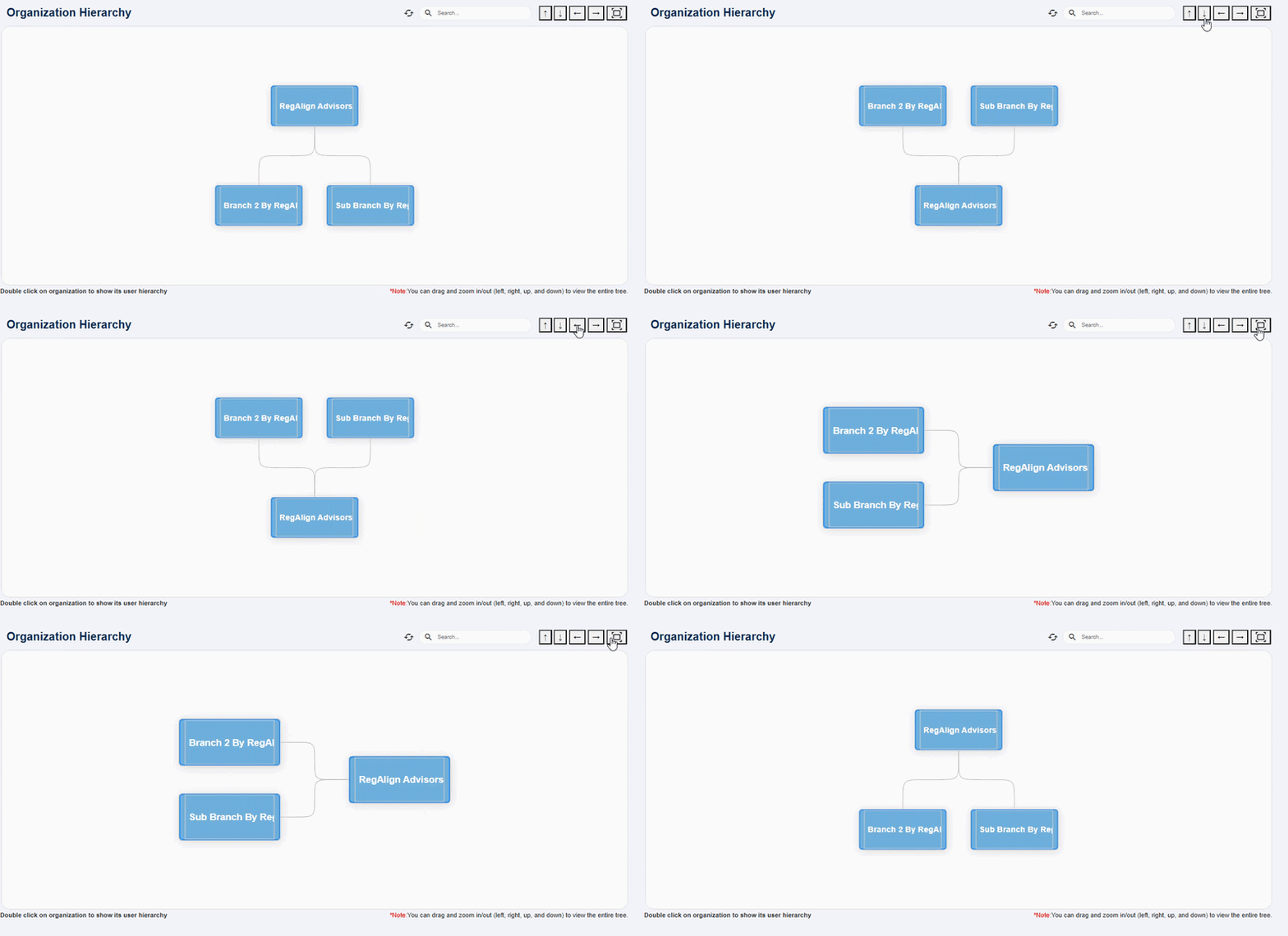 Fig: 4 - Organization Hierarchy orientation views
These controls help users efficiently explore and analyze even large organizational structures without losing context.
Benefit: Improves usability by allowing users to customize the view, ensuring better readability and easier navigation of complex hierarchies.5. Accessing Employee Hierarchy
Switch contexts from organization-level view to employee-level view by selecting a specific company.
To switch to another company, simply double-click on any organization block. This action instantly opens the Employee Hierarchy view.
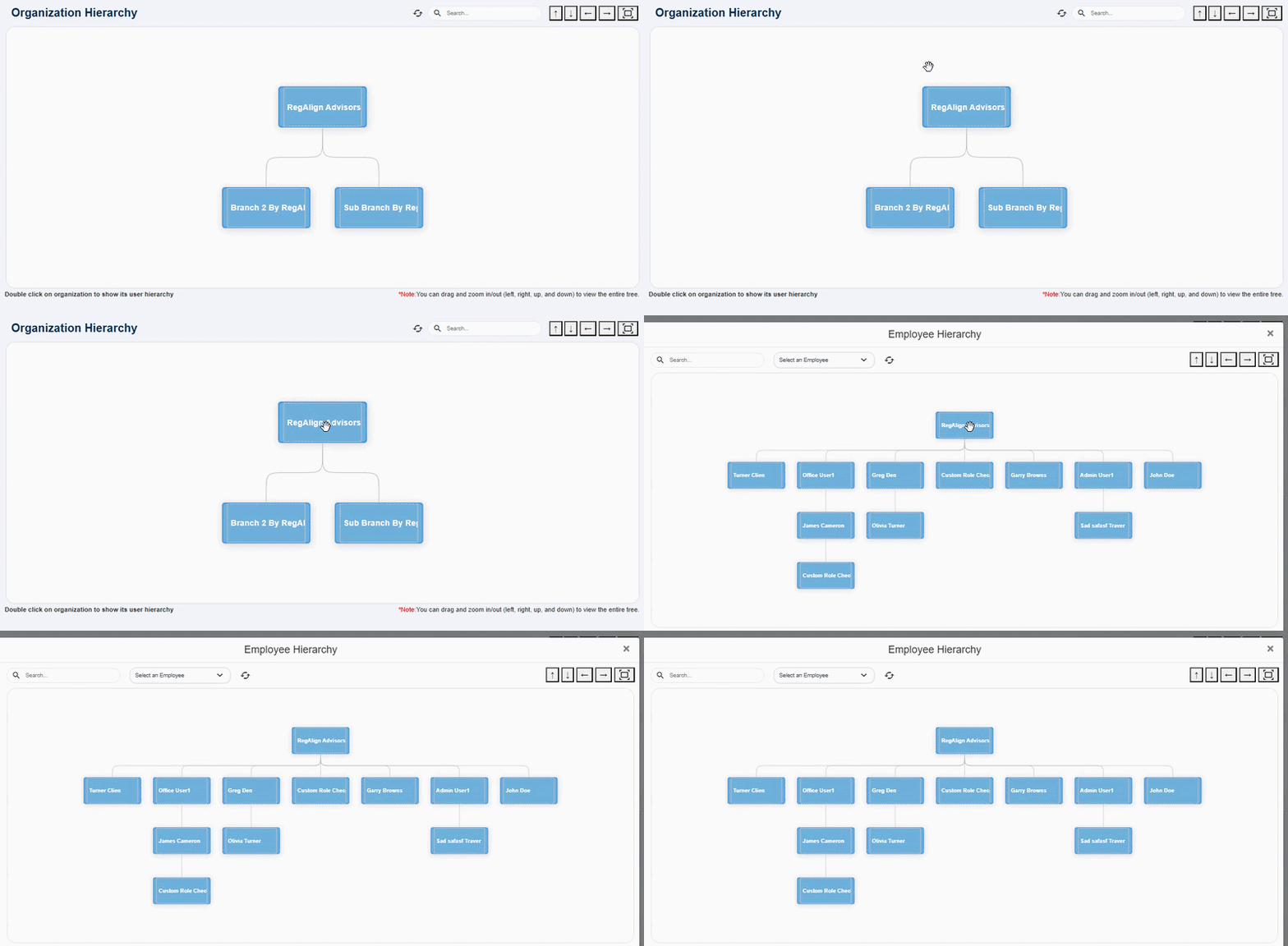 Fig: 5 - Employee Hierarchy view
This eliminates the need to log out and log back in.
Benefit: Enables seamless company switching without reauthentication, improving speed and workflow continuity.6. Using the Employee Hierarchy View
This section describes how to interact with the Employee Hierarchy view, including searching, selecting users, and understanding reporting relationships.
The Employee Hierarchy is displayed in a popup window and shows reporting relationships in a structured format.
- Search Bar: Quickly filter employees by entering text in the search bar. A Found the match! success notification can be seen at the top-right when result is found.
- Select an Employee Dropdown: Choose any listed employee to highlight that user in the tree view.
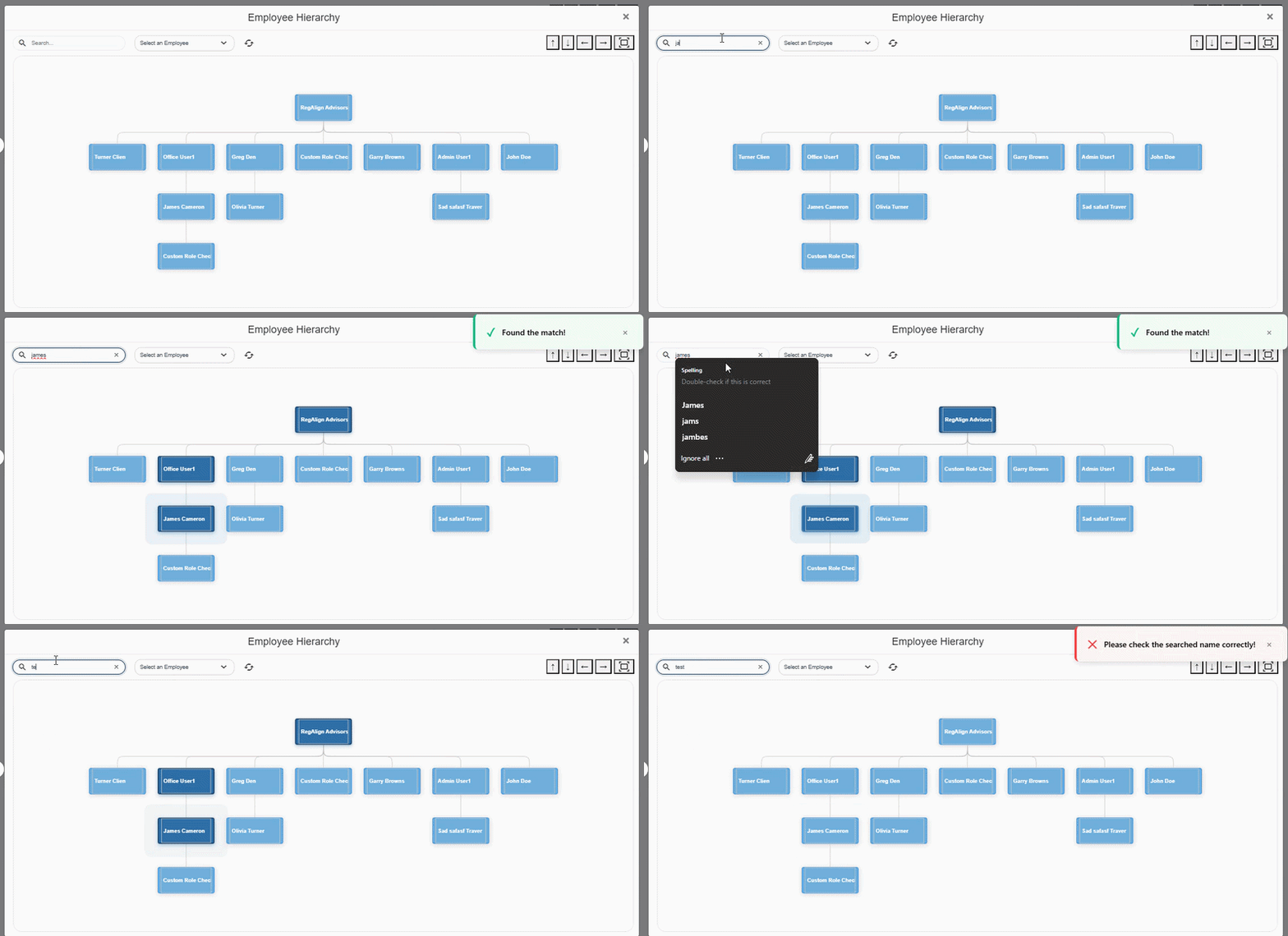 Fig: 6 - Employee search
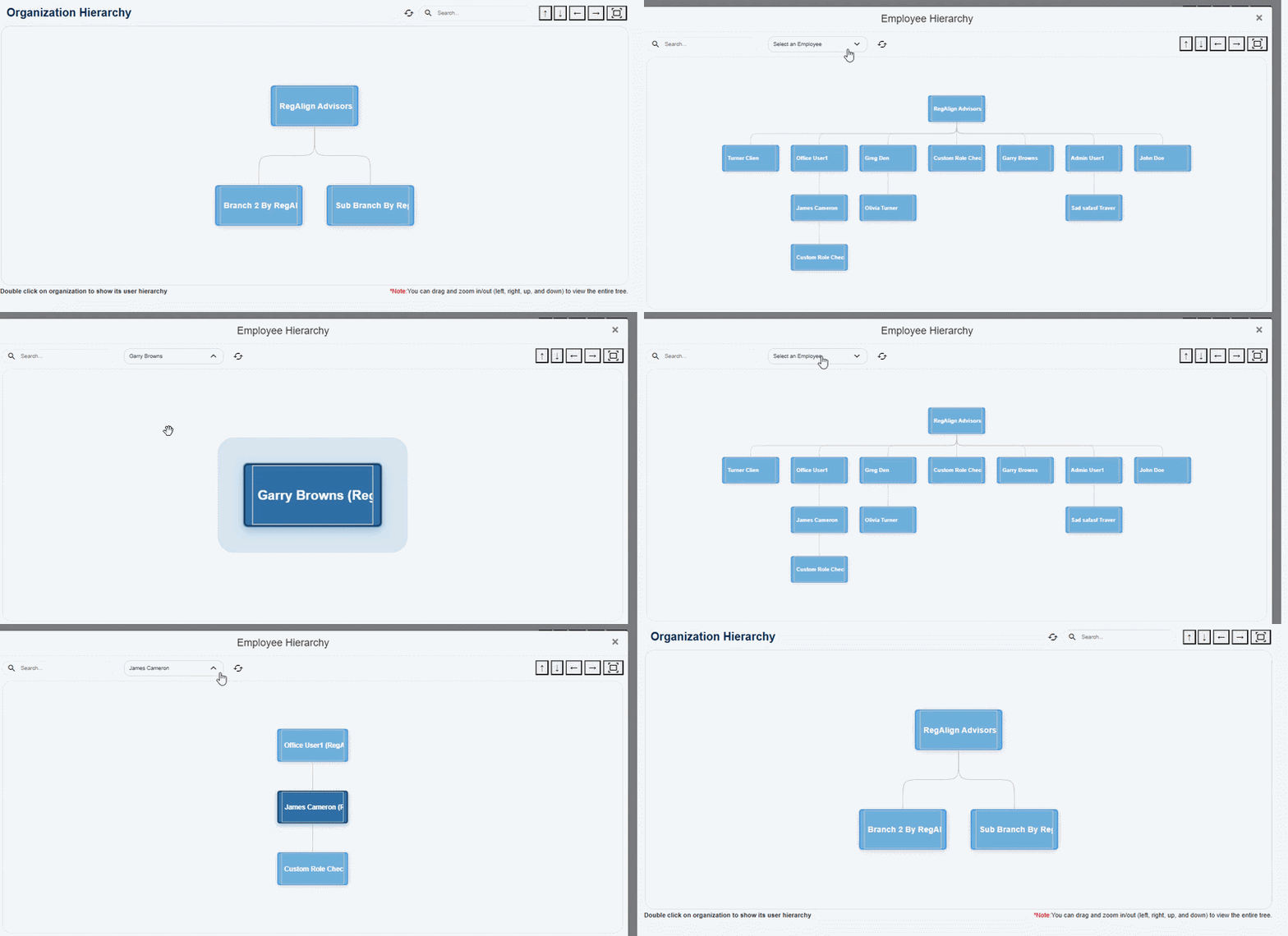 Fig: 7 - Employee dropdown
The dropdown includes inline search and dynamically filters results. The reset icon resets the view.
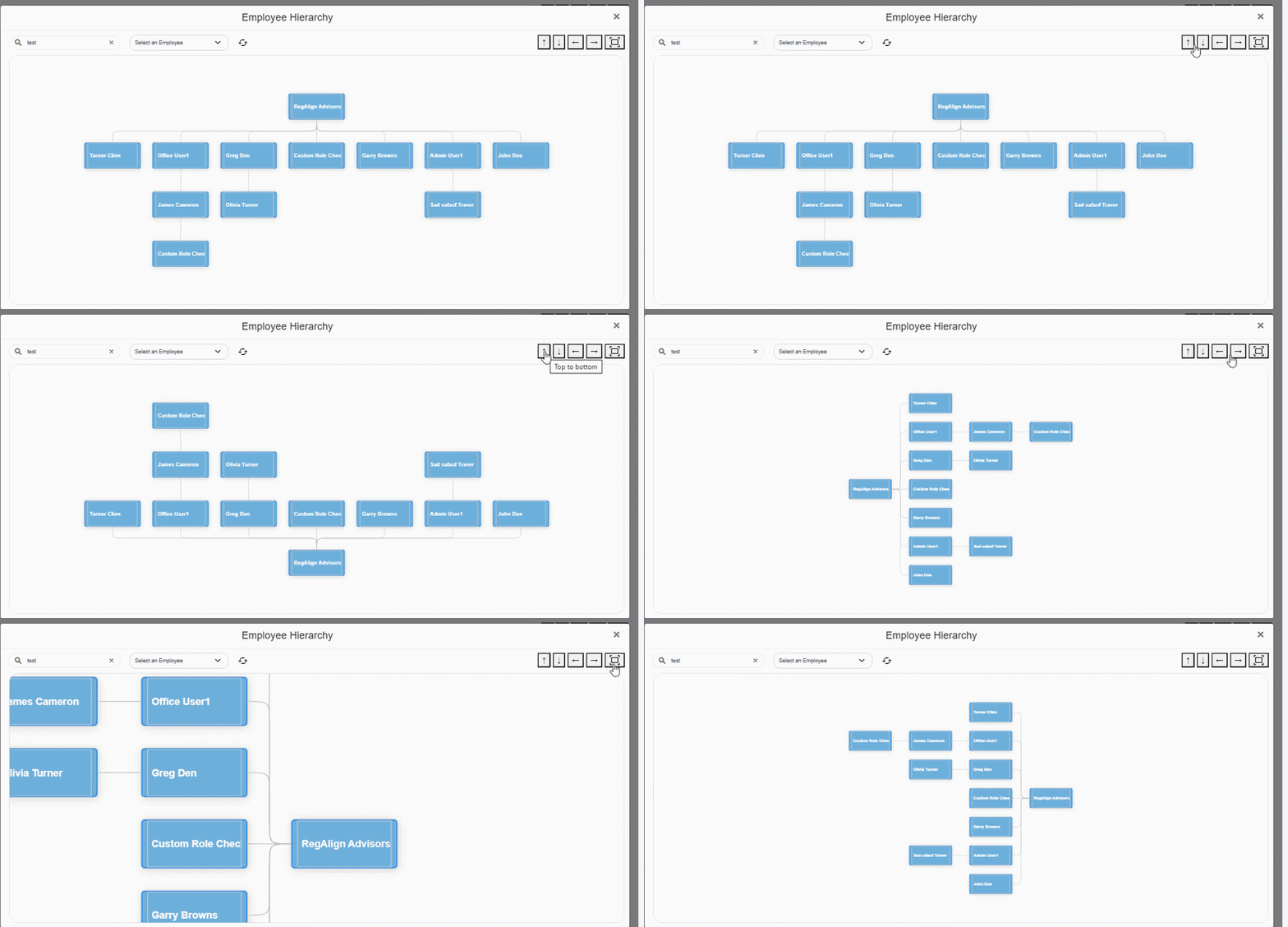 Fig: 8 - Navigation controls
7. Annexure > FAQs on Organization Hierarchy
-
1What is the Organization Hierarchy page used for?The Organization Hierarchy page provides a visual representation of all companies and their relationships within the system. It helps users understand the structure of parent organizations, subsidiaries, and branches in a single interactive view.
-
2How can I find a specific company?Use the search bar available on the Organization Hierarchy page. As you type, the system dynamically filters and displays matching companies within the hierarchy.
-
3What happens when I double-click a company?Double-clicking a company opens the Employee Hierarchy view for that organization. This view displays users and their reporting relationships within the selected company.
-
4What is the Employee Hierarchy view?The Employee Hierarchy view is a popup interface that shows a structured layout of employees within a company, along with their reporting relationships. It helps users understand team structures and organizational roles.
-
5How do I search for an employee?You can search for employees using the search bar or the “Select an Employee” dropdown. The dropdown includes an inline search feature that dynamically filters matching employee names as you type.
-
6What are the navigation controls available?Navigation controls located at the top-right of the hierarchy views allow you to zoom in/out, pan in different directions, and adjust the layout orientation to better explore the structure.
-
7What does the reset
 icon do?The reset icon reloads or resets the Employee Hierarchy view. It ensures that the displayed structure is up to date and helps restore the default view when needed.
 -
8Can I close the Employee Hierarchy view?Yes. The Employee Hierarchy is displayed in a popup window, and you can close it at any time using the close (X) icon located at the top-right corner of the screen.