
 This online help page offers detailed guidance on the SurgeONE.ai Onboarding Packages interface and its capabilities.
The Onboarding Packages page introduces a structured way to group multiple forms into reusable bundles to targeted employees. This page improves efficiency by standardizing onboarding workflows, reducing manual setup and ensuring that all new hires or role transitions of existing employees receive consistent requirements. With deadline management and progress tracking, users gain better oversight and experience a smoother onboarding journey.
Onboarding Packages displayed on this page get fetched in the Onboarding Items page of ONLY the submitters and assigned users.
The accessibility and functionalities of the different sections of this Onboarding Packages page are dependent on the published forms and the pool based access set for the logged-in user. For more details refer to the Forms Library online help and Users Pool online help.
1. Navigating to the Onboarding Packages page
To begin working with Onboarding Packages, permitted users must first access the Onboarding Packages module. The Onboarding Packages page acts as the central hub for all employee onboarding activities within the SurgeONE system. From this single interface, users can initiate new onboarding packages, view package details and the completion progress of each form or the progess made by any assigned employee. This empowers users to manage employee onboarding workflows efficiently, ensuring that such processes are carried out in a structured, transparent, and compliant manner.
Click on the Onboarding menu group of the left panel and then on the expanded Onboarding Packages menu label.
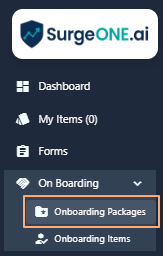 Fig: 1 - Onboarding Packages menu option
Clicking on this menu option loads the Onboarding Packages page showing a blank grid view.
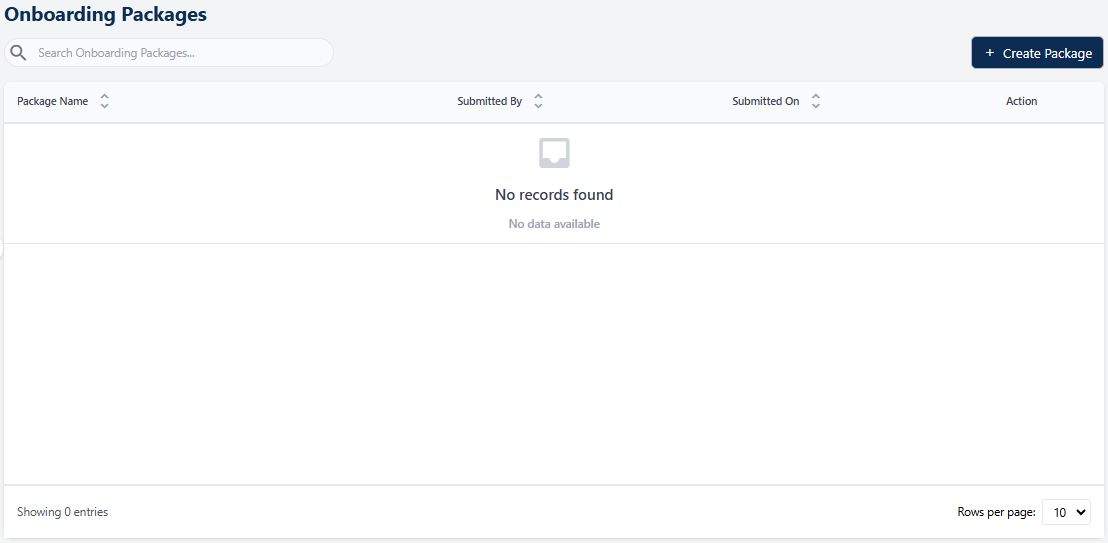 Fig: 2 - Grid view blank by default
All the published Onboarding Packages of your organization can be included here manually, one-by-one. Here is the view of one such entry populating the grid view. These custom Onboarding Packages can be created and submitted for review and approval by the assigned personnel.
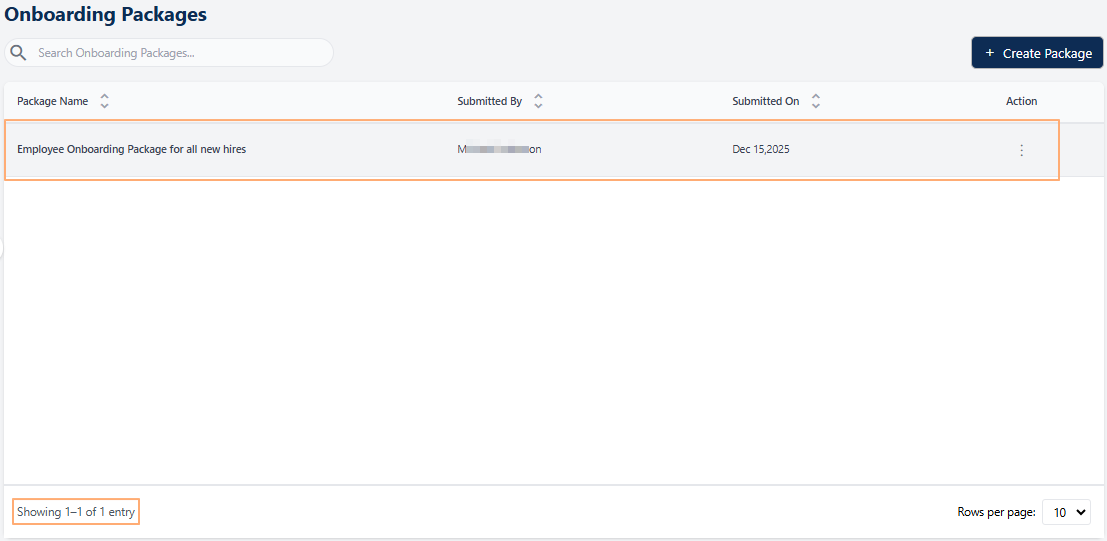 Fig: 3 - Onboarding Packages page with added custom Onboarding Packages
Key features of this Onboarding Packages page
- Package Creation – Bundle chosen forms from the submitted ones into a single onboarding package.
- User Assignment – Assign packages based on single or multiple employees selection.
- Progress Tracking – Monitor completion rates and status across assigned users.
2. Understanding the Onboarding Packages page elements
The Onboarding Packages page interface includes several key components that support efficient form management. The search bar helps users quickly locate specific Onboarding Packages, while the grid view displays essential details in a structured layout. Action menus provide direct access to various activities, and pagination controls make it easy to navigate large sets of data. Together, these elements simplify interaction with the SurgeONE system and give users confidence in managing their form workflows.
Refer to the following screenshot which is marked with numerical values that correspond to the below stated points.
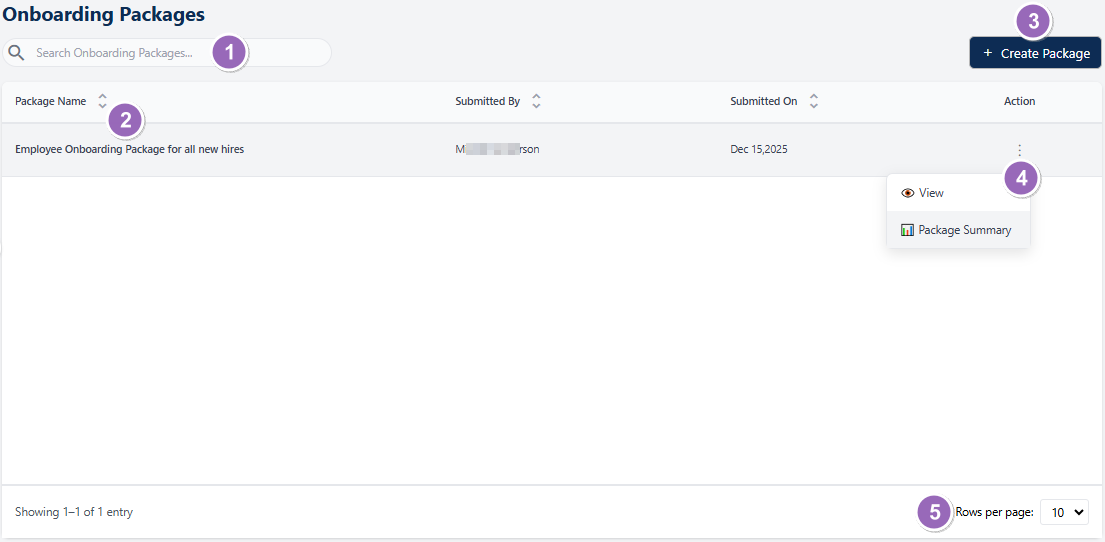 Fig: 4 - Understanding the various elements of the Onboarding Packages page
-
1Search barThe search bar allows users to quickly locate added / submitted onboarding package entries using keywords.
-
2Grid viewDisplays loaded or filtered results in a structured tabular format.
-
3+ Create Onboarding Packages buttonAdd a new onboarding package entry in the Onboarding Packages grid view by choosing any published forms from Manage Forms module and assigning active employees.
-
4Action columnContains a vertical ellipsis
 icon to toggle row-context menu options.
 -
5Pagination optionsControls page item limits and enables navigation across multiple pages of onboarding package entries.
 NOTE: The following sub-sections elaborate further the associated functionalities of the above-stated points.
2.1. Searching for Onboarding Packages
The search functionality allows users to quickly locate specific onboarding package entries using keywords. This feature is particularly useful when managing a large number of Onboarding Packages, as it reduces time spent browsing and ensures accurate retrieval of relevant records.
You can use the search bar to enter text and find matching results.
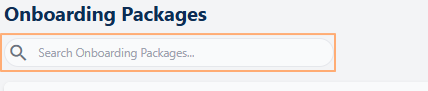 Fig: 5 - Search bar to quickly find added Onboarding Packages
The search operation gets executed on the Package Name, Submitted By and Submitted On columns' data. Based on the text entered, matching results are listed out.
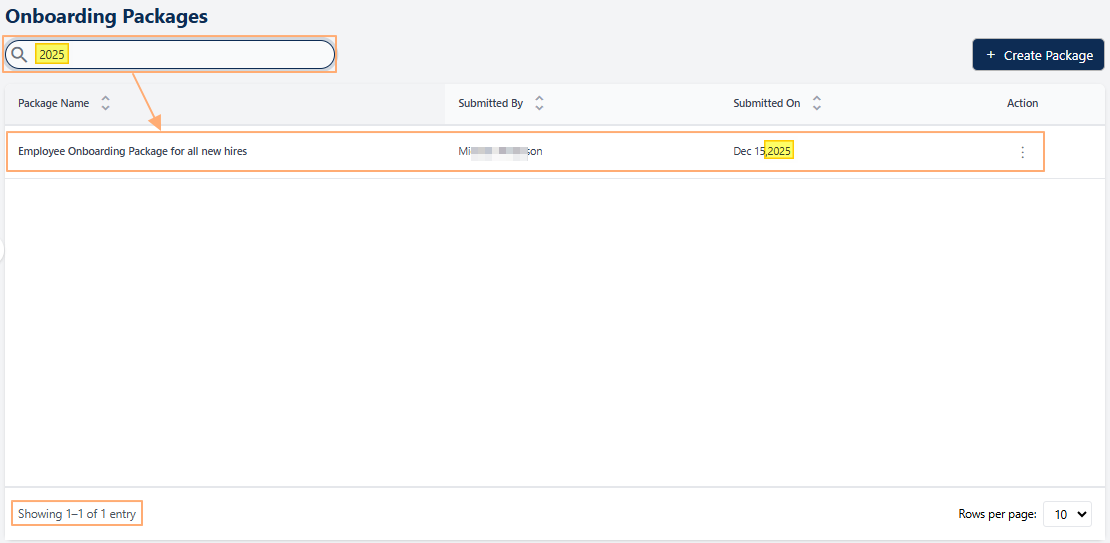 Fig: 6 - Filtered results
If no results are fetched by the executed search query, a No records found label in the grid view and a Showing 0 Records label is displayed below the grid view.
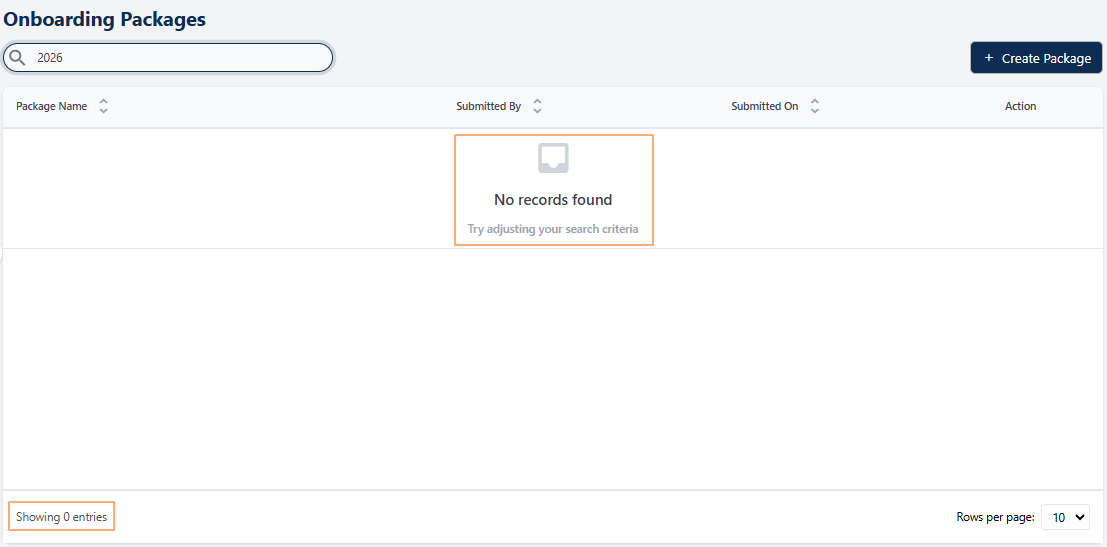 Fig: 7 - No matching records found
2.2. Understanding the grid view
The grid view organizes onboarding package entries into a clear, tabular format that makes information easy to scan and interpret. Each row corresponds to an individual package, while the columns display key attributes such as the name, submitted date, etc. This structured layout not only provides users with a quick overview of all Onboarding Packages at a glance but also supports efficient monitoring, comparison, and management of submissions within the SurgeONE system.
The grid view displays all onboarding package entries. The following columns are present:
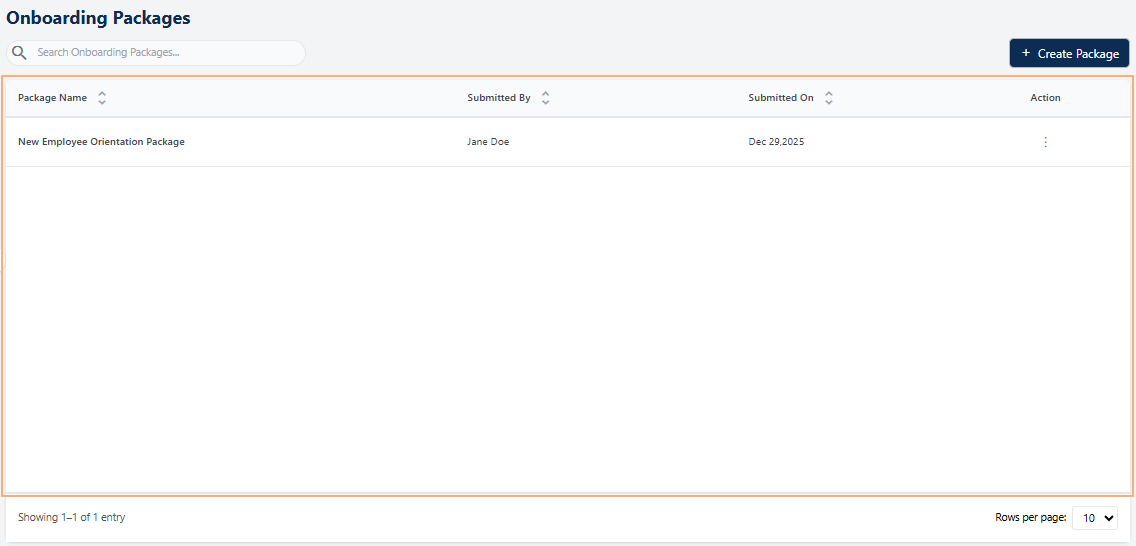 Fig: 8 - Onboarding Packages grid view
-
1Package NameDisplays the official name of the package as defined during its creation. This helps users identify which onboarding package or process the entry belongs to.
-
2Submitted ByShows the name of the individual who submitted the package, ensuring accountability and easy traceability.
-
3Submitted OnDisplays the exact date when the package was submitted, supporting timely reviews and compliance monitoring.
-
4ActionContains a vertical ellipsis icon to toggle row-context menu options for performing actions.
2.3. Creating an Onboarding Package
Creating an onboarding package is a structured process designed to streamline employee integration and ensure consistency across organizational workflows. The process begins by defining key package details such as name, start date, purpose, and procedures, which establish the foundation for the onboarding experience. Next, relevant forms are selected and added to the package, enabling comprehensive documentation and compliance. Finally, the package is assigned to designated employees and submitted for execution. This systematic approach enhances clarity, reduces administrative effort, and ensures that all onboarding requirements are met efficiently.
Click on the + Create Onboarding Packages button to add a new onboarding package entry in the Onboarding Packages grid view by choosing any published forms from Manage Forms module and assigning active employees.
 Fig: 9 - Create Onboarding Packages button
There are three tabs to create a Onboarding Package, as follows:
-
1Package DetailsDefine the core information for the onboarding package, including name, start date, purpose, and procedures.
-
2Select FormsChoose and add relevant forms to the package for a complete onboarding workflow.
-
3Assign EmployeesAllocate the onboarding package to designated employees and finalize submission.
Here is the view of the first tab. The image is marked with numerical values which correspond with the tabular data mentioned below.
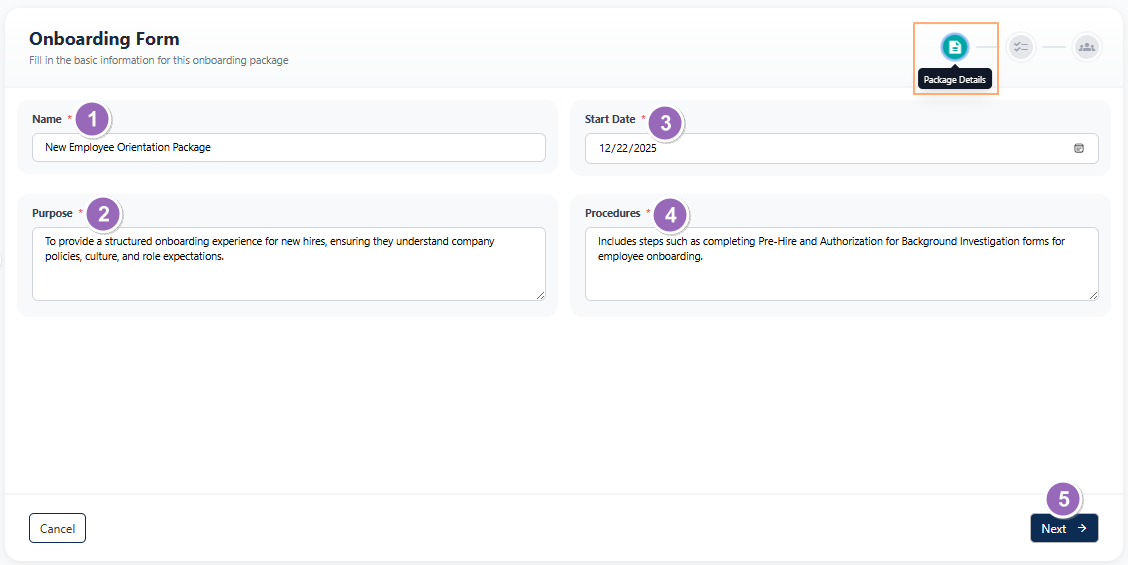 Fig: 10 - Package Details tab of Onboarding Package creation
Steps to fill the Package details are mentioned in the below table.
1st Tab > Package Details
| Sl. No. | Field / Section Label / Action | Description and Benefit |
|---|---|---|
| Name |
Enter the unique name of the onboarding package being created (e.g., "New Employee Orientation Package").
Benefit: Helps users easily identify and reference the onboarding package. |
|
| Purpose |
Allows users to describe the objective or intent of the onboarding package.
Benefit: Provides context and clarity on why the onboarding package is created. |
|
| Initiation Date |
Specifies the date on which the onboarding package becomes effective.
Benefit: Supports accurate scheduling and start‑date tracking. |
|
| Completion Date |
Defines the expected date by which the onboarding package should be completed.
Benefit: Helps manage timelines and ensure timely completion. |
|
| Procedures |
Allows users to document the steps, instructions, or guidelines associated with the onboarding package.
Benefit: Ensures consistency and clear guidance during onboarding execution. |
|
| Send Notifications (Workflow Settings) |
Toggle to enable or disable automated notifications during the onboarding workflow, by selecting an listed notifier pool.
Benefit: Keeps stakeholders informed without manual follow‑ups. |
|
| Next button |
Proceeds to the next step of the onboarding package configuration process.
Benefit: Enables smooth progression through the onboarding setup workflow. |
|
| Cancel button |
Exits the onboarding package creation screen without saving changes.
Benefit: Allows users to safely discard incomplete or incorrect entries. |
Here is the view of the first tab filled with sample data.
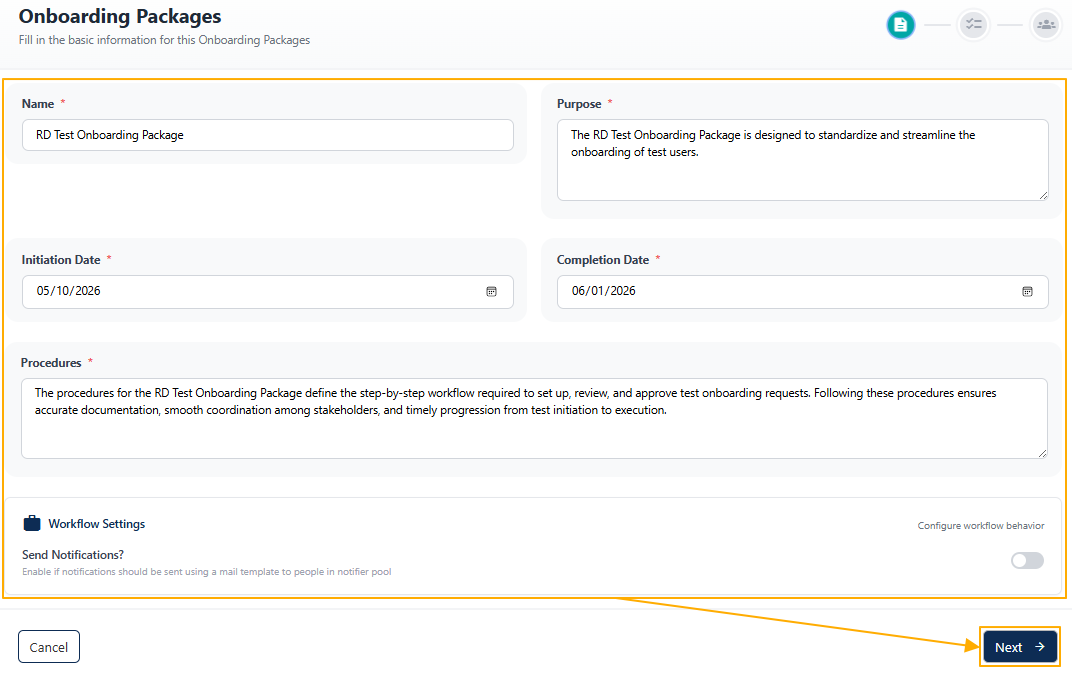 Fig: 11 - Package Details tab of Onboarding Package creation filled with sample data
NOTE:
- All fields are mandatory. The following field validations are present.
- After you click on the Send Notifications? slider, a Notifier Pool dropdown appears in the Workflow Settings card. The slider needs to be enabled if notifications should be sent using a mail template to people in notifier pool. Select appropriate notifier pool from the dropdown. Only one option can be set. The dropdown options are fetched from created notifier pools of the Users Pool page.
- If you click on the Next button without selecting a dropdown option when this slider is enabled, the system does not allow you to proceed.
- Admin-Controlled and Package-Specific Behavior - The behavior of notifications is fully Admin-driven and specific to each package:
- Only Administrators (or permitted users) can configure notifier pools and workflow notifications.
- Notification settings apply solely to the package being configured.
- A system-managed email template ensures consistency in message format and reduces ongoing maintenance.
This structure provides complete administrative control while giving stakeholders improved visibility with no additional configuration required on their end. - Only pools configured with the type Notifier Pool under Settings → User Pool will appear in the dropdown. This gives Admins precise control over who receives progress updates on a package-by-package basis.
Each email includes key details such as:- Package name
- Submitted form name
- Submitter's name
- Remaining form count
- Completion indicator (e.g., "All Forms Filled")
- Once notifications are enabled and a pool is selected:
- Each time a form is submitted, the system triggers a progress email.
- All users in the selected Notifier Pool receive the update.
- Alerts continue to be triggered in the system until the entire package is completed. This ensures complete clarity and alignment throughout the entire lifecycle of a package, significantly improving workflow transparency.
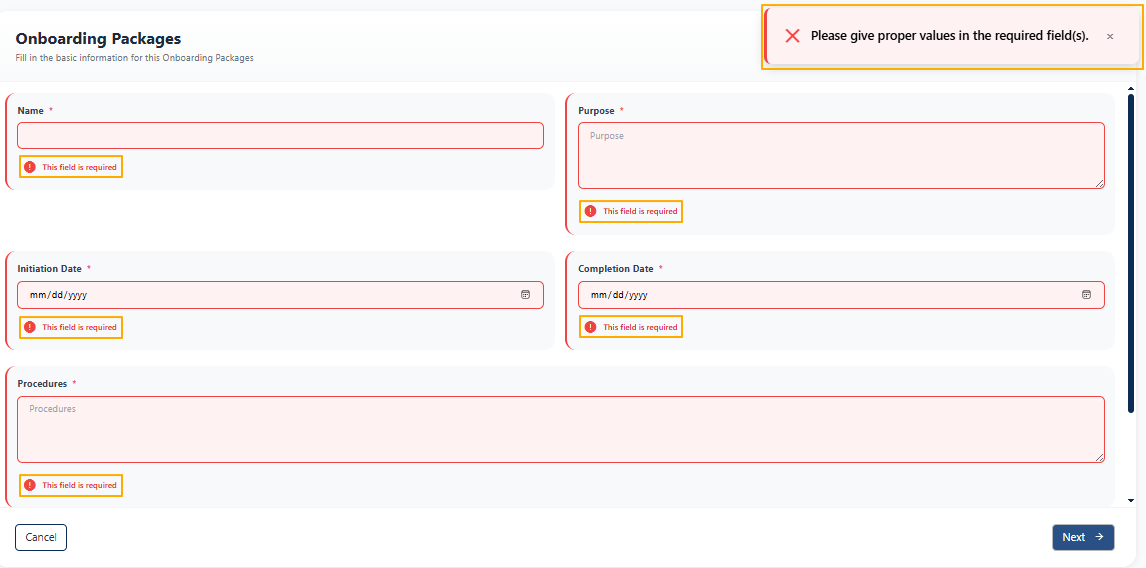 Fig: 12 - Field validations
 Fig: 13 - Enabling the Send Notifications? slider to choose a notifier pool
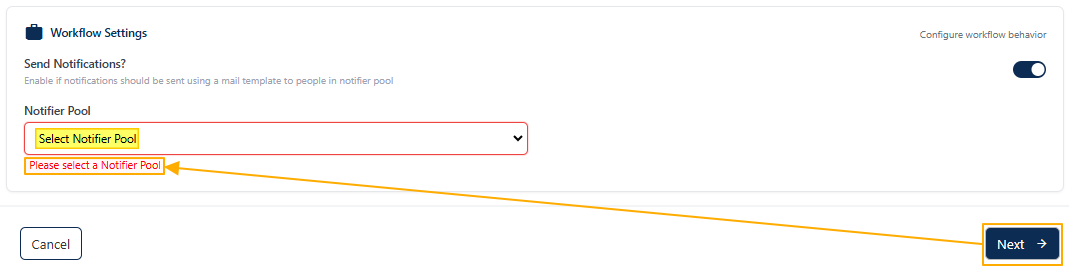 Fig: 14 - Tooltip prompted to select notifier pool
2nd Tab > Select Forms
Here is the default view of the second tab.
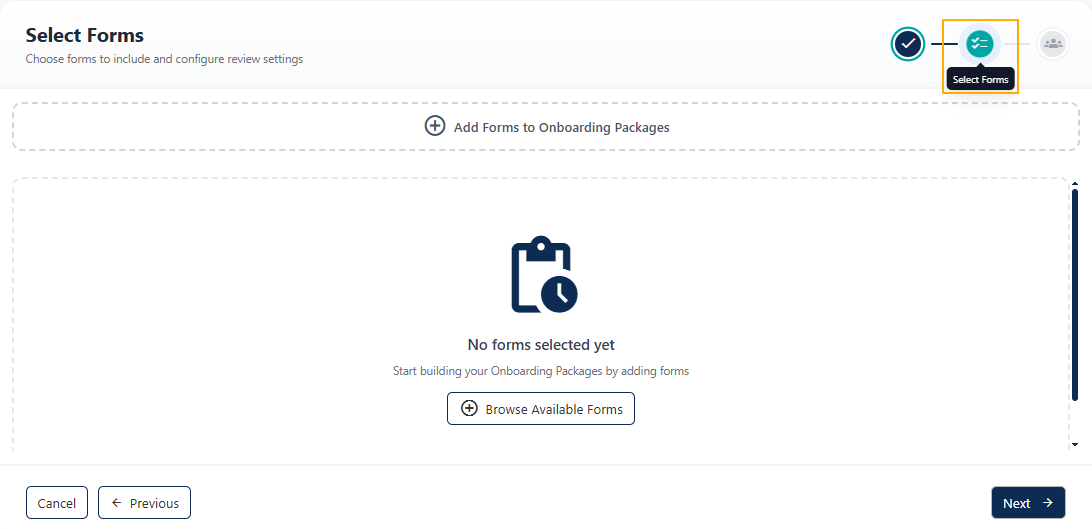 Fig: 15 - Default view of the second tab
The form selection step has been briefly described in the following two tables.
- The first table describes the default page elements and form selection process
- The second table describes the page elements present after form selection, the submission of the selected forms and configuration of its parameters
| Sl. No. | Field / Section Label / Action | Description and Benefit |
|---|---|---|
| No Forms Selected Yet |
Displays a message when no forms have been added to the package. This is the default state.
Benefit: Alerts users to add forms before proceeding. |
|
| Browse Available Forms |
Allows users to view and select forms from the available list. Only forms with Active status of Forms Library are visible in the loaded modal window. It disappears when you include a form.
Benefit: Ensures correct forms are included in the package. |
|
| Add Forms to Package |
Performs the same function as the above field. Click on it to load a modal to view and select forms from the available list. Any forms already included are displayed with greyed-out checkboxes.
Benefit: Provides visibility of included forms before submission. |
|
| Selecting Forms |
Click on the checkbox or row entry of the published forms to select. Use the top checkbox to select all listed forms. You can use the search bar to quickly find forms. Click on the Add Selected Forms button to add the forms to the package as per your selection.
Benefit: Seamlessly include active forms to the package. |
Here is the view of the second tab and the loaded Available Forms modal window. The image is marked with numerical values which correspond with the tabular data mentioned above.
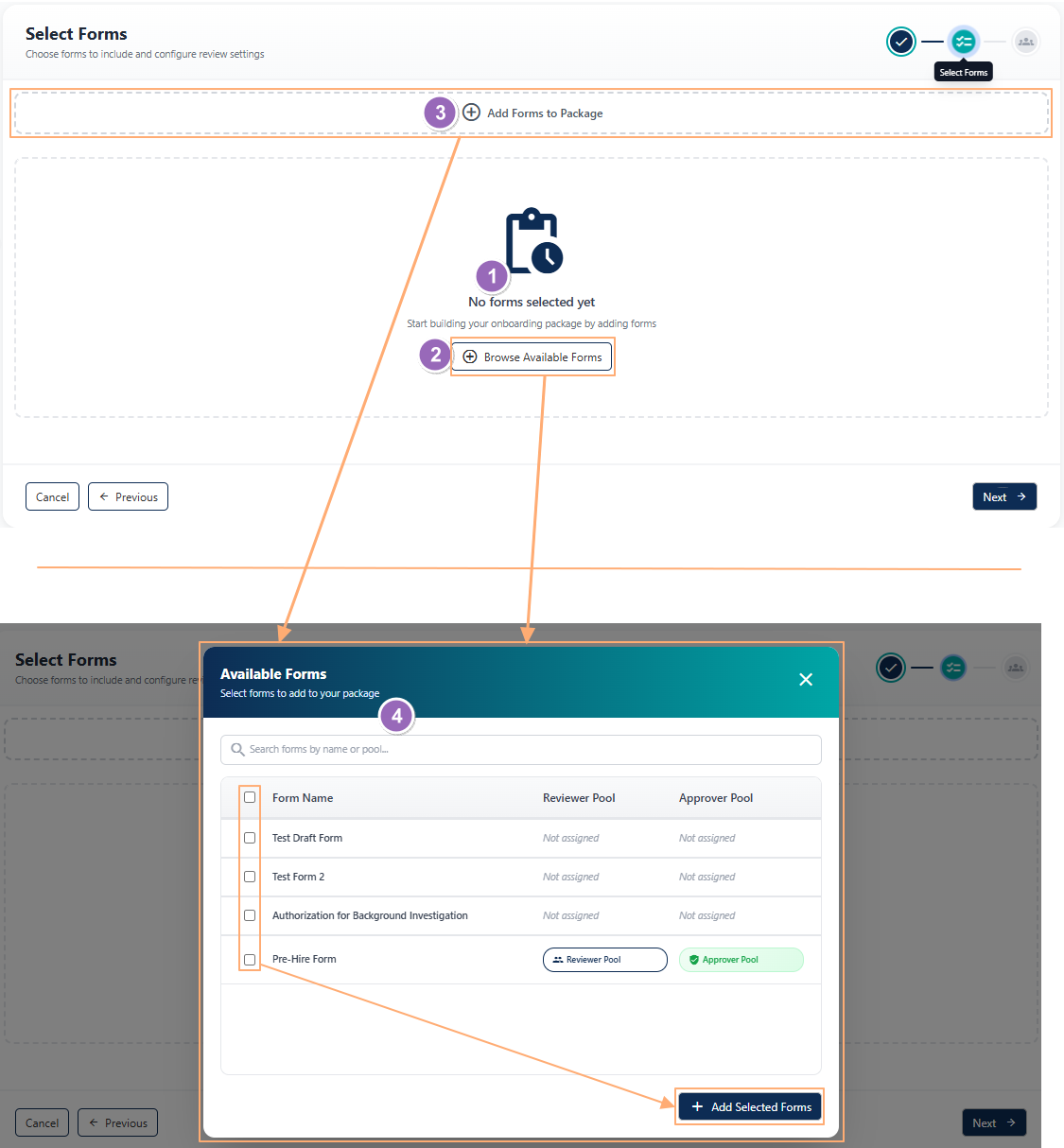 Fig: 16 - Default view of the Select Forms tab during Onboarding Package creation
This table describes the page elements present after form selection, the submission of the selected forms and configuration of its parameters.
| Sl. No. | Field / Section Label / Action | Description and Benefit |
|---|---|---|
| Add Forms to Onboarding Packages |
Opens the Available Forms dialog, allowing users to select forms to be included in the onboarding package.
Benefit: Enables quick selection of required forms without leaving the workflow. |
|
| Review Required Toggle |
Allows users to enable or disable the review requirement for a selected form.
Benefit: Provides flexibility to include review steps only where necessary. |
|
| Reviewer Pool Selector |
Allows users to assign a reviewer pool responsible for reviewing the selected form.
Benefit: Ensures forms are reviewed by the appropriate group of reviewers. |
|
| Reviewer Requirement Scope |
Defines whether review is required from any one reviewer or all reviewers in the selected pool.
Benefit: Supports both parallel and single‑review approval models. |
|
| Approver Pool Selector |
Allows users to assign an approver pool responsible for approving the selected form.
Benefit: Ensures proper authorization before form completion. |
|
| Approver Requirement Scope |
Specifies whether approval is required from any one approver or all approvers in the selected pool.
Benefit: Provides control over approval strictness and governance. |
|
| Remove Form Action |
Allows users to remove a previously added form from the onboarding package.
Benefit: Enables easy correction when forms are added unintentionally. |
|
| Next button |
Proceeds to the next step in the onboarding package configuration workflow.
Benefit: Allows users to continue setup once form configuration is complete. |
|
| Previous button |
Navigates back to the previous step without losing configured form settings.
Benefit: Allows users to review or modify earlier configurations. |
|
| Cancel button |
Exits the onboarding package creation process without saving further changes.
Benefit: Provides a safe exit to prevent saving incomplete configurations. |
Here is the view of the second tab after forms are displayed in the page (after inclusion) along with its configurable parameters. The image is marked with numerical values which correspond with the tabular data mentioned above.
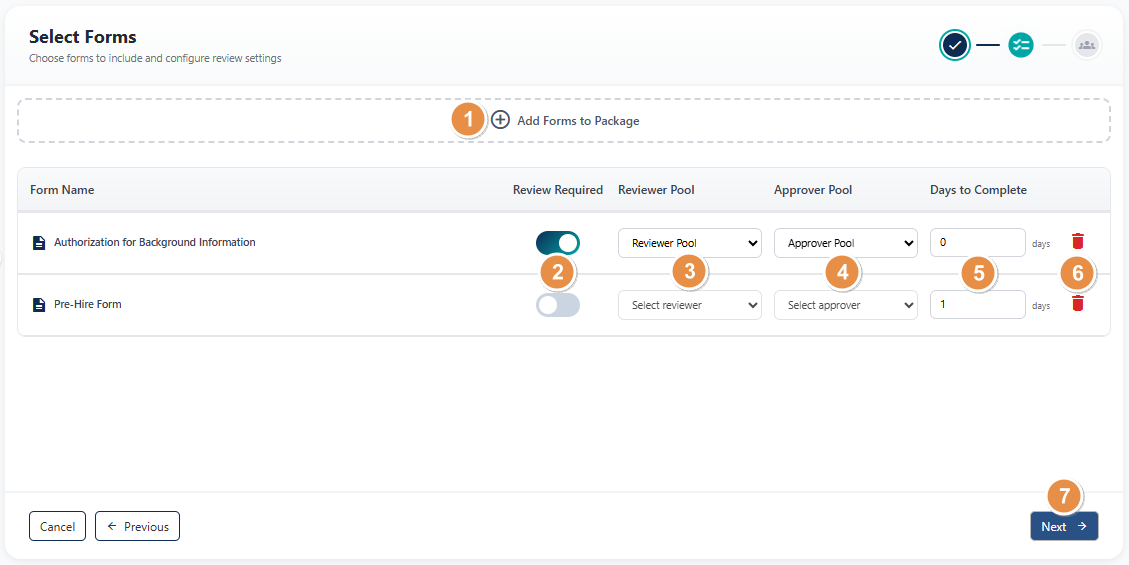 Fig: 17 - Select Forms tab view after form(s) selection
NOTE: You must select at least one form before proceeding. If you click on the Next button without selecting a form, the system does not permit you to proceed and the following error notification gets prompted.
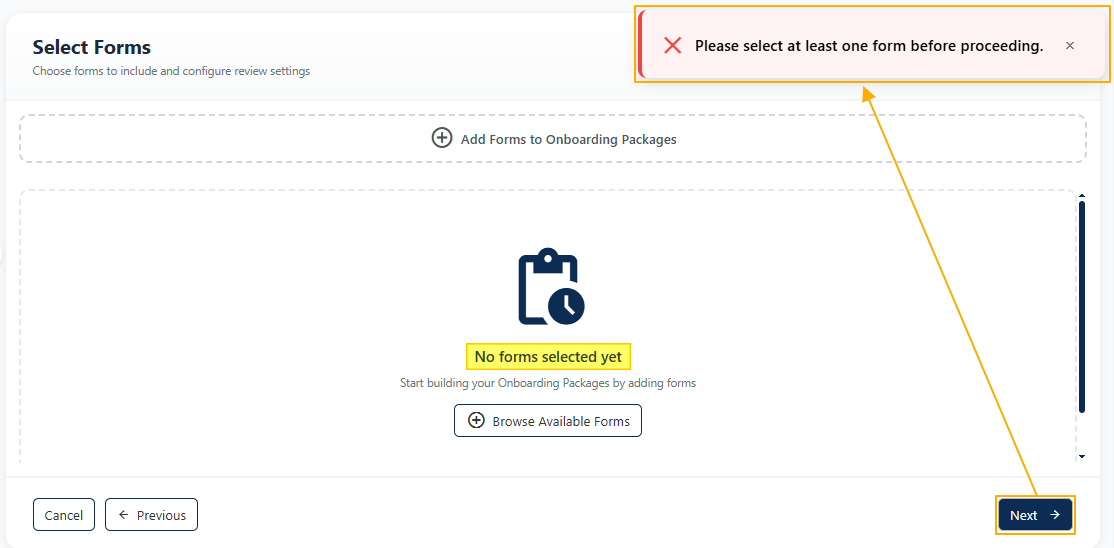 Fig: 18 - Form selection validation
3rd Tab > Assign Employees
Here is the view of the third tab after forms have been selected and its configurable parameters have been specified. The image is marked with numerical values which correspond with the tabular data mentioned below.
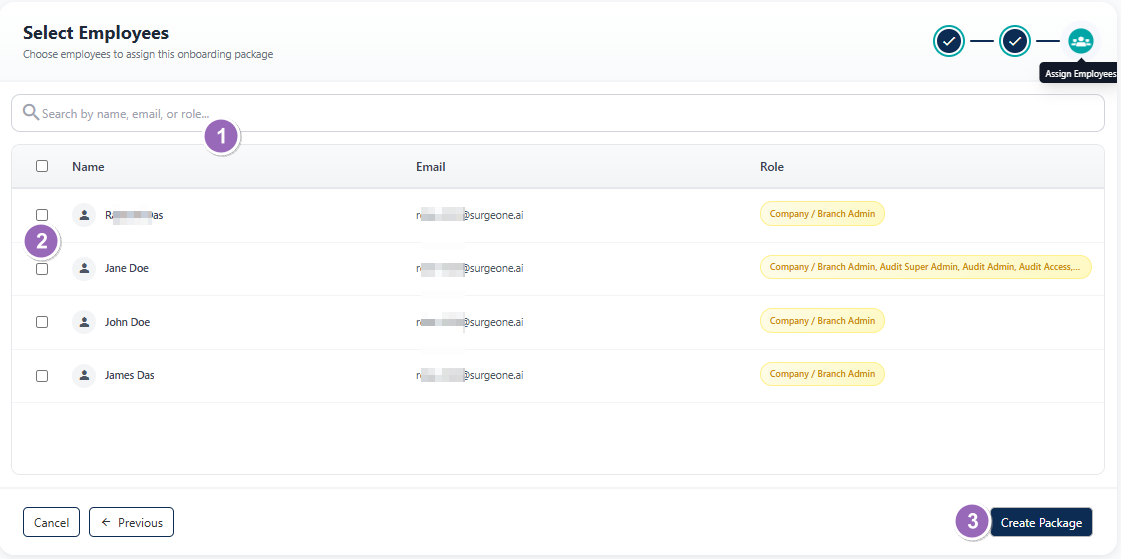 Fig: 19 - Assign Employees tab view after form(s) selection
| Sl. No. | Field / Section Label / Action | Description and Benefit |
|---|---|---|
| Search bar |
Search for listed users by entering keywords fully or partially. Search operation is executed on the basis of user name, email address or assigned role of the user.
Benefit: Displays individuals who can receive the onboarding package. |
|
| Selection checkbox and Select Employees grid view |
Assign the onboarding package to selected employees for execution by using the checkboxes provided. Multiple employees can be assigned to work on one package. In the grid view, listed results consisting of the active employees of your organization can be seen. The inactive users are not displayed here. Three columns are present to reveal the full name, registered email address and the role(s) assigned to the active employees. You can also use the search bar to quickly find active employee(s).
Benefit: Ensures the right individuals receive the package for timely completion. |
|
| Set Reminders button |
Allows users to configure automated reminder notifications for important dates related to the onboarding package. More details on setting reminder have been explained in the below NOTE section (for the same menu option, the explanation is provided here).
Benefit: Helps ensure timely follow‑ups, reduces the risk of missed deadlines, and keeps stakeholders informed without manual intervention. |
|
| Previous button |
Navigates the user back to the previous step in the onboarding package creation workflow without discarding the entered information.
Benefit: Allows users to review or modify earlier inputs easily, reducing errors and rework. |
|
| Cancel button |
Exits the onboarding package creation process without saving it.
Benefit: Gives users a safe way to stop the process and avoid saving incomplete or incorrect information. |
|
| Create Onboarding Packages button |
Confirms and creates the onboarding package (included forms) for processing by the selected employees.
Benefit: Finalizes the process of onboarding package creation. |
Here is the view of the third tab after employees have been selected. The number of employees selected is displayed at the top-right.
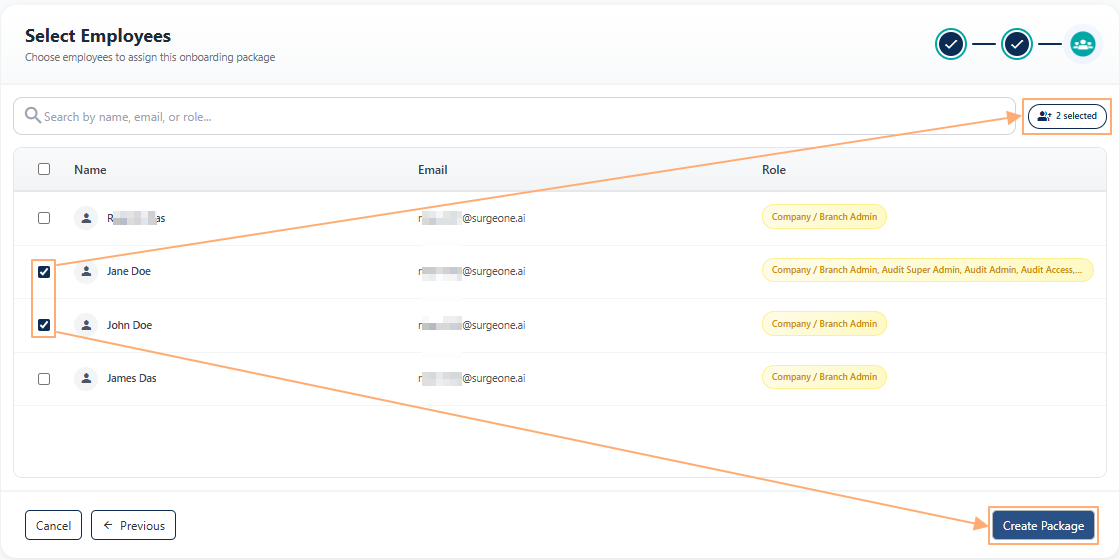 Fig: 20 - Assign Employees tab view after employee selection
By following these steps, users can confidently submit Onboarding Packages. Once created, it is visible in the grid view.
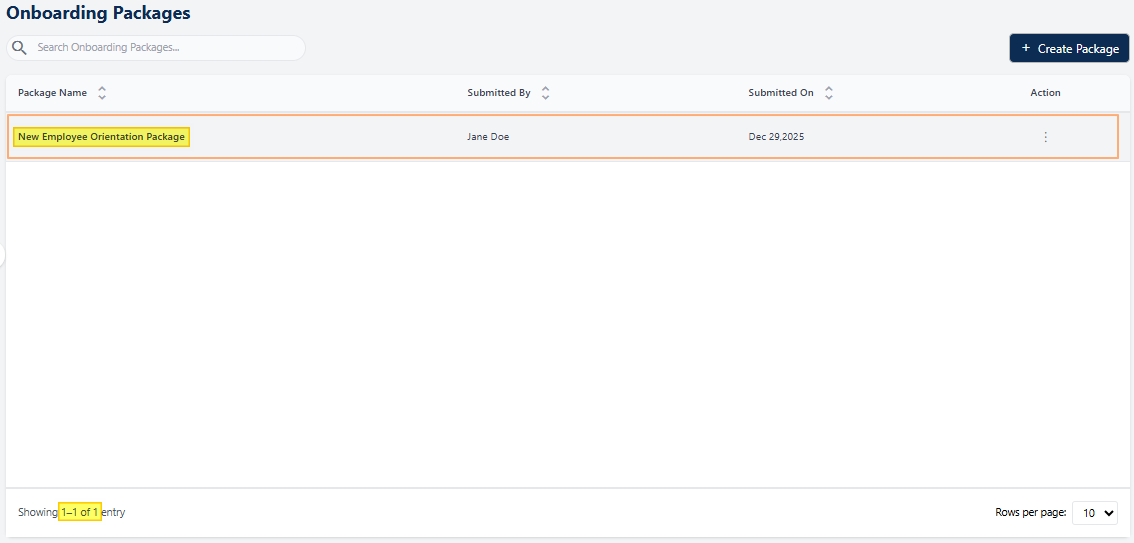 Fig: 21 - Created Onboarding Package
An email gets triggered to the assigned users.
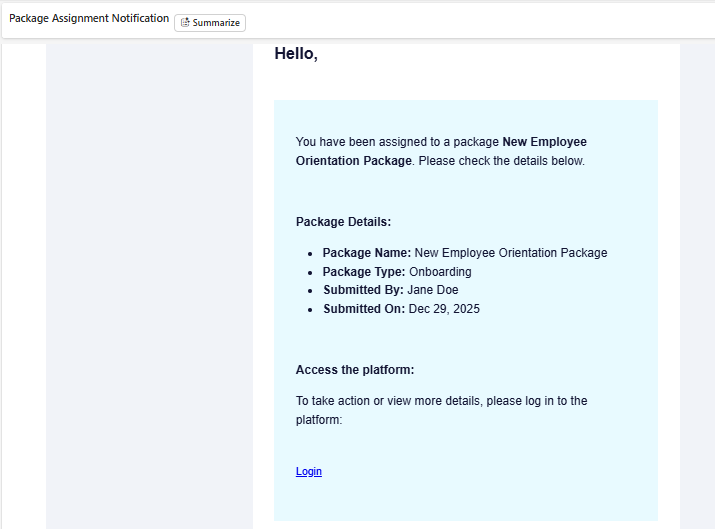 Fig: 22 - Triggered email on package creation
Submitted Onboarding Packages are available to the assigned employees under the Onboarding Items module (grid view and package summary view), as well as in the My Item(s) page.
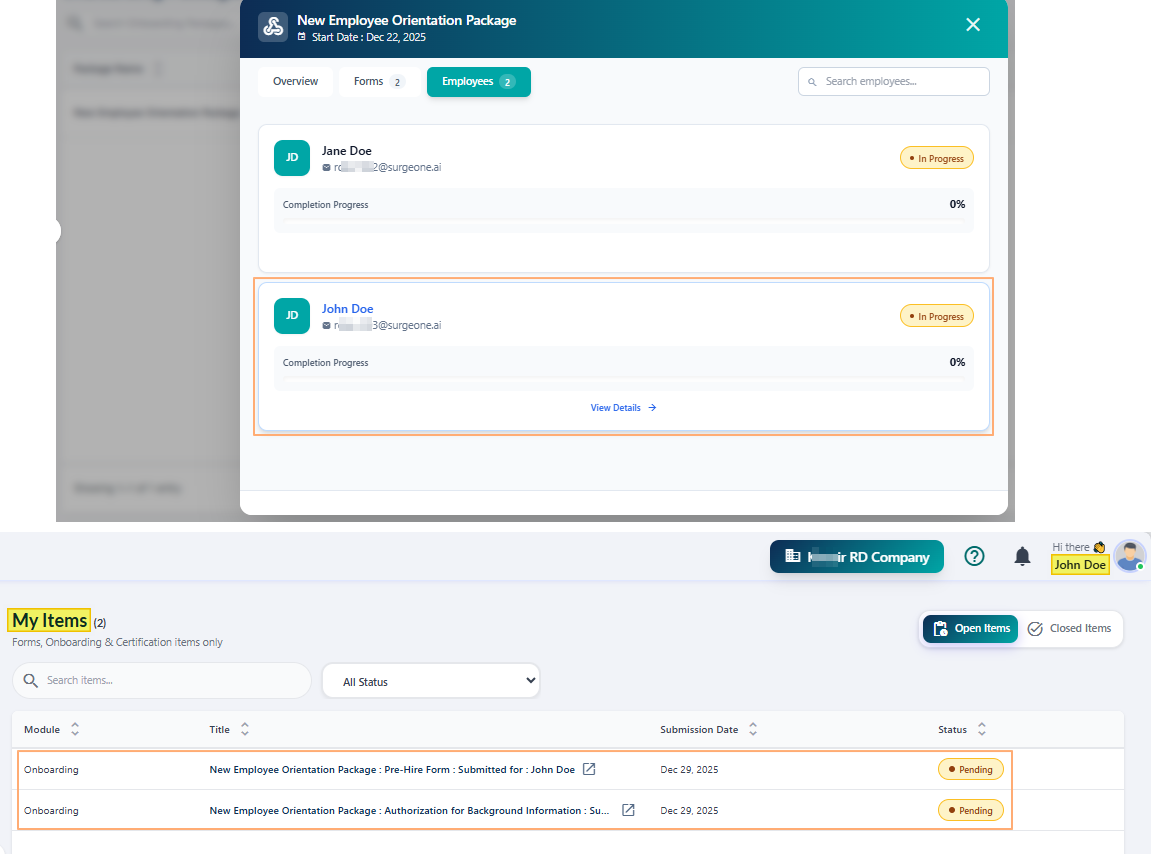 Fig: 23 - Created package activity initiation options
NOTE:
-
Searching for Users
- You can use the search bar to enter text and find matching results. The search operation gets executed on the Name, Email and Role columns' data. Based on the text entered, matching results are listed out.
- If you click on the Cancel option and then on Yes, Cancel button of the confirmation prompt modal window, the page closes and you get redirected to the Onboarding Packages page.
- You must select at list any one user to proceed to create the onboarding package. Otherwise, the following validation gets prompted.
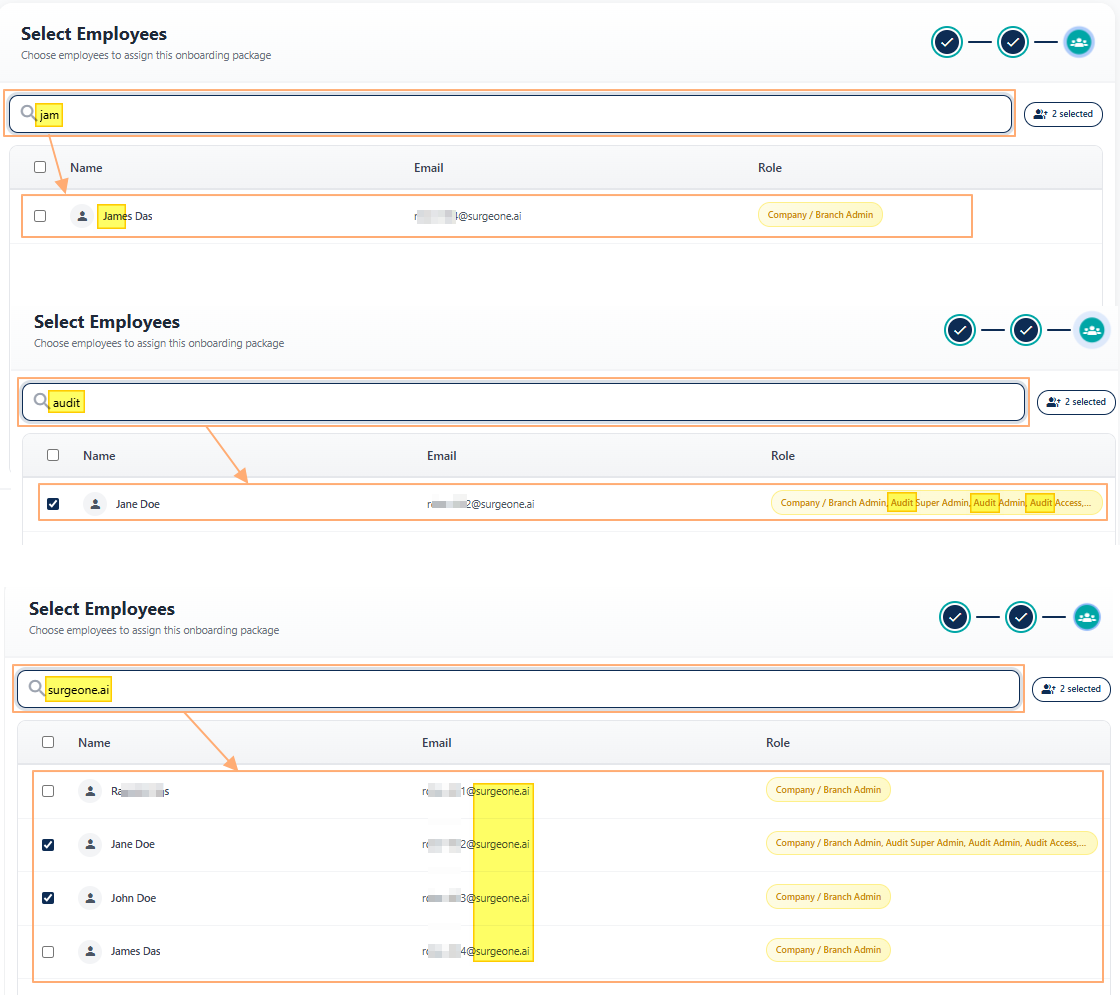 Fig: 24 - Filtered results
If no results are fetched by the executed search query, a No records found label in the grid view and a Showing 0 Records label is displayed below the grid view.
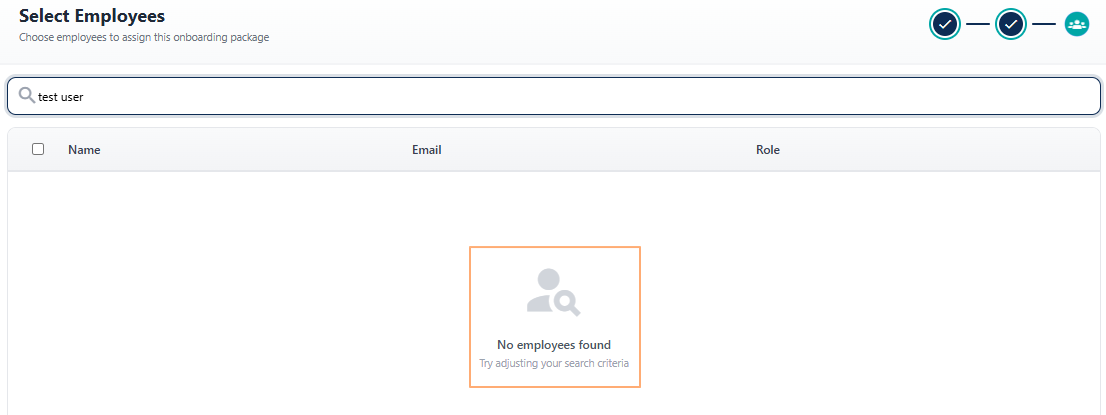 Fig: 25 - No matching records found
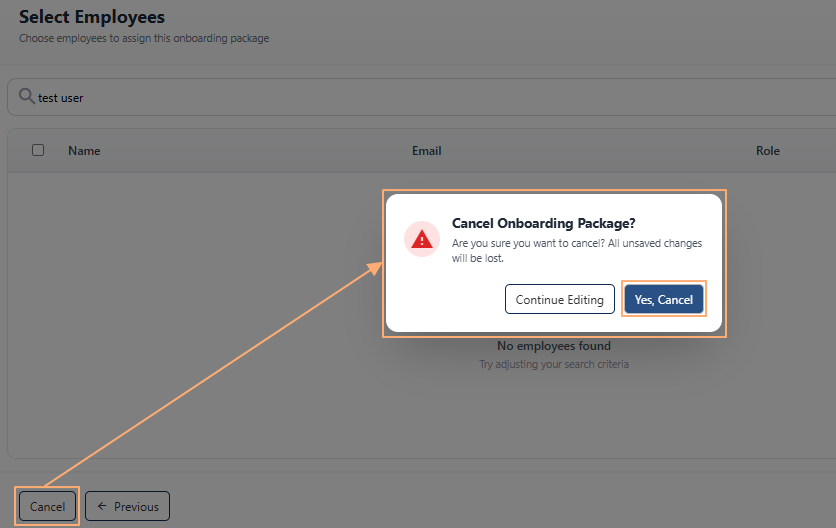 Fig: 26 - Cancelling onboarding package creation during employee selection
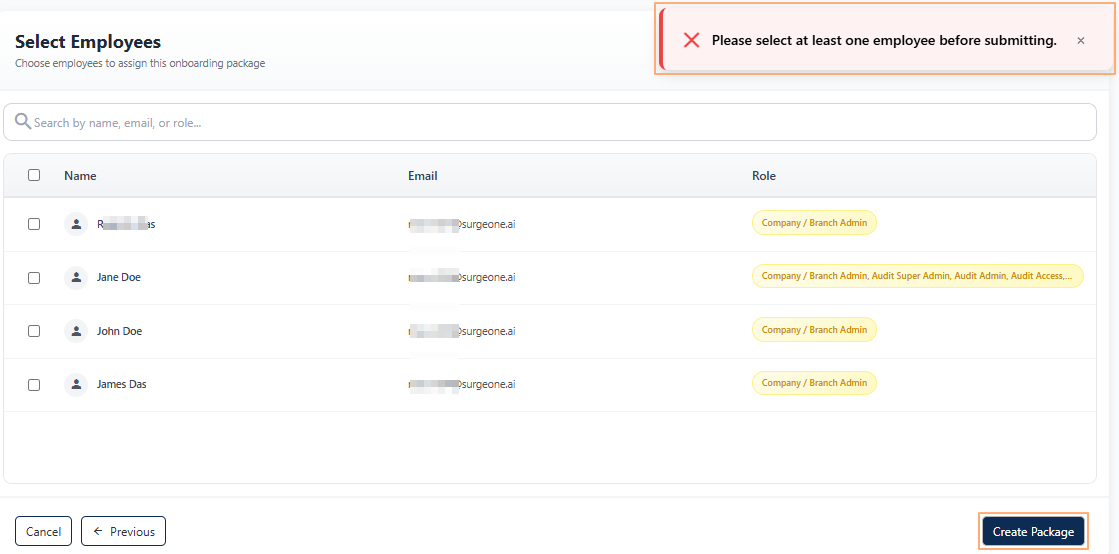 Fig: 27 - User selection validation
 Setting Reminder
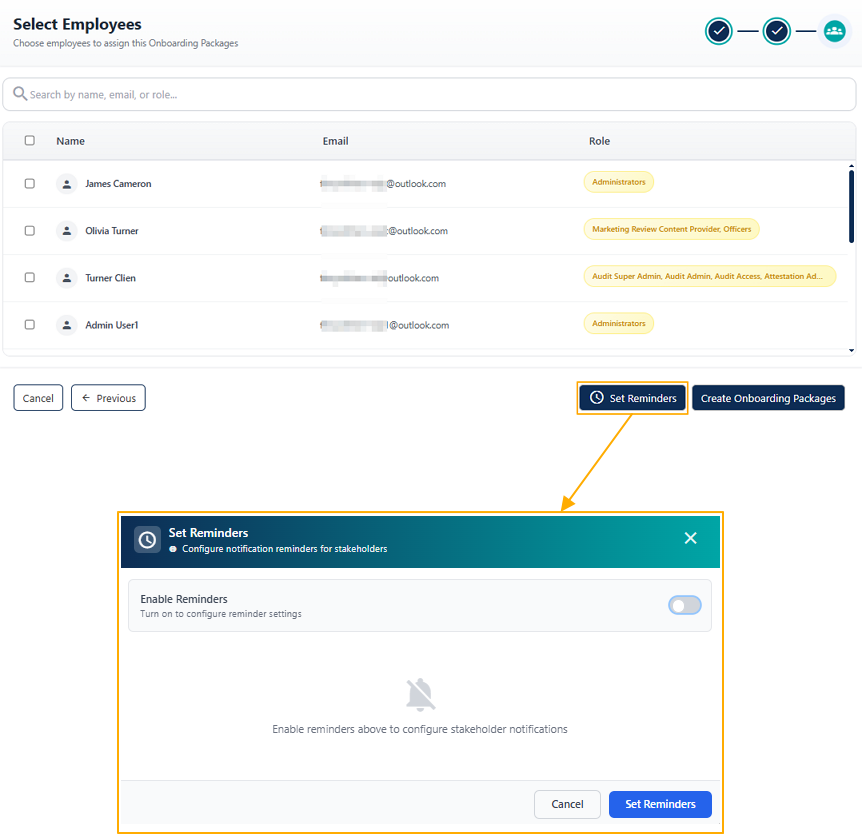
The below table illustates the functionality of using the Set Reminder button in a step-by-step manner:
| Sl. No. | Field / Section Label / Action | Description and Benefit |
|---|---|---|
| Proceed to Reminder Configuration |
Click the Set Reminders button to load the modal window to set the reminder configuration.
Benefit: Allows reminder setup before finalizing onboarding assignment. |
|
| ||
| Enable Reminders |
Turn on the Enable Reminders slider toggle to activate reminder configuration for stakeholders. The Timeline and Configuration section fields load.
Benefit: Ensures automated notifications are triggered during onboarding progress. |
|
| ||
| Review Timeline Dates |
Review the initiation and completion dates displayed, which define the valid reminder window. These are fetched from the Package Details stage. The dates are displayed as read-only fields. In the Configurations section, an info icon is present beside the Value field label. Hover your mouse pointer to reveal the associated tooltip.
Benefit: Aligns reminder scheduling with onboarding timelines. Tooltip helps user to understand the date calculation. |
|
| ||
| Configure Reminders for Submitter |
Specify the reminder interval for the Submitter by choosing the unit of measure (Days) and entering the number of days in the respective Value field. Currently, the UOM dropdown (stands for unit of measurement) contains only the pre-selected Days option in it.
Benefit: Ensures submitters receive timely reminders to complete assigned tasks. |
|
| Configure Reminders for Reviewer |
Enter reminder values for Reviewers in the respective Value field to prompt timely review actions.
Benefit: Prevents review delays and keeps workflows moving. |
|
| ||
| Configure Reminders for Approver |
Enter reminder values for Approvers.
Benefit: Ensures approval actions are not missed due to inactivity. |
|
| ||
| Validate Reminder Inputs |
Resolve any validation errors (such as missing required values) highlighted in the configuration screen. When the Enable Reminders slider is enabled, you must enter numberic value in all of the three Value fields for Stakeholders - Submitter, Reviewer and Approver.
Benefit: Prevents saving incomplete or invalid reminder configurations. |
|
| ||
| Save Reminder Configuration |
Click Set Reminders to save and apply the configured reminder settings.
Benefit: Activates automated reminders for all configured stakeholders. |
|
| ||
2.4. Using the Action column menu options
Each onboarding package entry in the grid view includes an Action column that provides quick access options. This design ensures that users can perform relevant actions directly from the grid without navigating away from the page.
Click on the vertical ellipsis icon within the Action column against any displayed row entry of the grid view to toggle the row-context menu options.
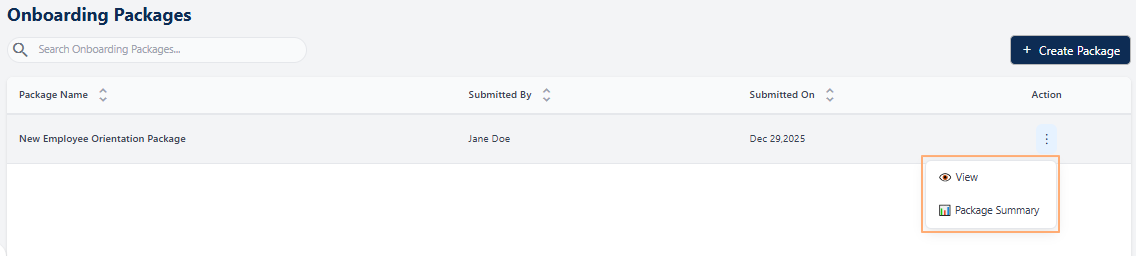 Fig: 35 - Action menu options
The following menu options are present:
-
1
 ViewUsed to view the submitted responses made to the forms of a package without the ability to make any modifications to the responses.
 -
2
 Package SummaryUsed to see the package overview, the purpose and its procedures, view the included forms of a package, its completion progress, the assigned employees and their assigned work completion percertages.
 -
3
 Set RemindersUsed to enable and set or disable automated notifications during workflow progression to stakeholders (Submitter, Reviewer and Approver).
NOTE: The following sub-sections elaborate on the functionalities associated with these options.
2.4.1. Using the View menu option
Selecting the View option enables users to open and review an existing onboarding package in its entirety. This feature is particularly valuable when users need to understand the structure and purpose of the form. By providing full visibility into any onboarding package, the View option supports better decision‑making.
- Click on the vertical ellipsis icon under the Action column, against any displayed row entry of the Onboarding Packages grid view to toggle the row-context menu option labeled as View.
- After clicking on it, three tabs are visible to display the onboarding package as per its configurations made in during the creation stages.
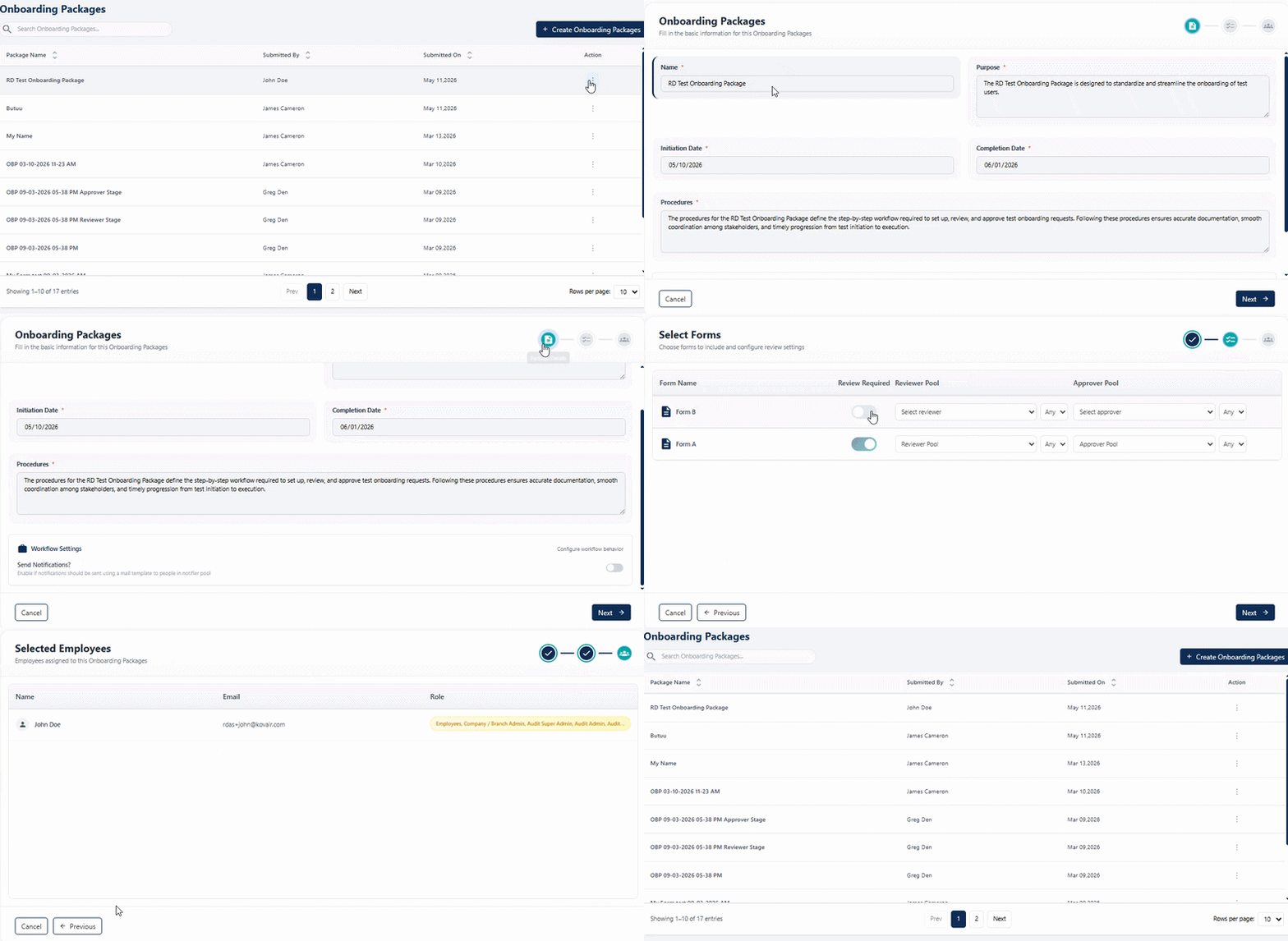 Fig: 37 - Demonstration of viewing an Onboarding Package
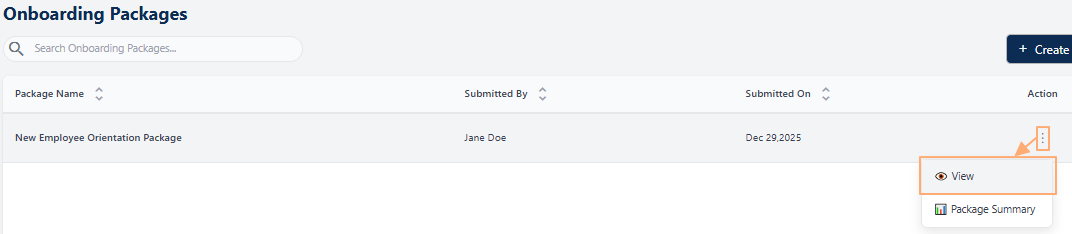 Fig: 36 - Clicking on the View menu option
2.4.2. Using the Package Summary menu option
The Package Summary option allows users to modify existing Onboarding Packages to meet specific requirements. This feature is beneficial for updating outdated information, correcting errors, or customizing fields to align with organizational needs. By enabling edits, users can maintain accuracy and relevance, ensuring that the form collects the right data for its intended purpose. It also reduces the need to create new Onboarding Packages from scratch, saving time and effort.
- Click on the vertical ellipsis icon under the Action column, against row entry of the Onboarding Packages grid view with In Progress status to toggle the row-context menu option labeled as Package Summary.
- After clicking on it, a modal window loads to display three tabs. More details of the tabs are provided in card-format below. To get a visual overview of it, check out the following image.
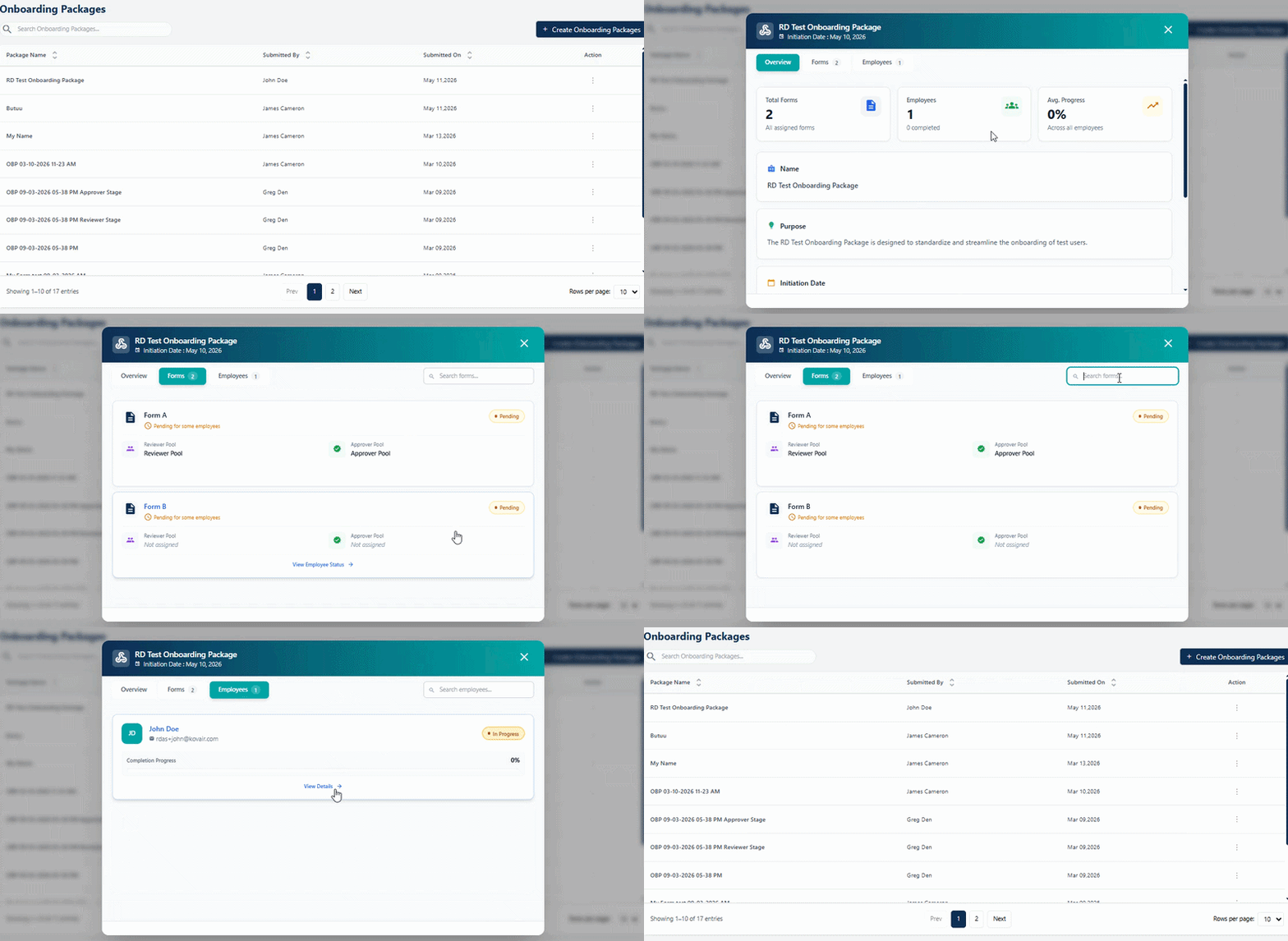 Fig: 39 - Demonstration of viewing the Package Summary modal
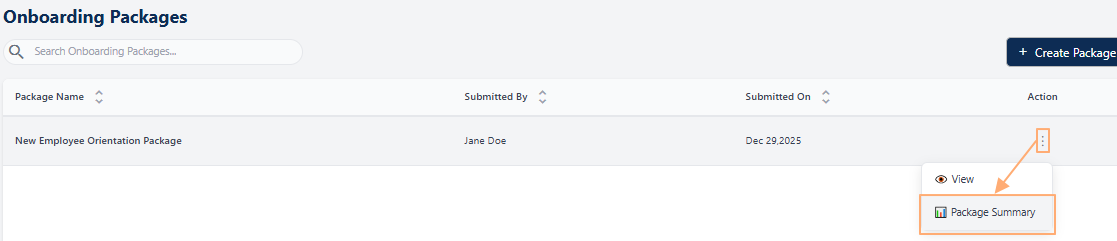 Fig: 38 - Clicking on the Package Summary menu option
-
1Overview Tab
- What it is: A dashboard-style tab summarizing the package via key cards (Total Forms, Employees, Avg. Progress) and a Package Summary section (Name, Purpose, Start Date, Procedures).
- Why it matters: Offers a single-glance understanding of package scope and health, helping stakeholders track progress and align on onboarding objectives.
- Typical actions: Review metrics (form count, assigned employees, average completion), confirm package context (e.g., New Employee Orientation Package), note Purpose (structured onboarding to cover policies, culture, expectations), check Start Date (e.g., Dec 22, 2025), and review Procedures (e.g., completing Pre-Hire and Authorization for Background Investigation forms).
-
2Forms Tab
- What it is: A tab that lists each included form in the package as cards showing the form name, status, assigned pools, and related metadata.
- Why it matters: Centralizes visibility and control over all package forms, enabling easy tracking of completion states and assignment coverage.
- Typical actions: Browse the forms (e.g., Pre-Hire Form, Authorization for Background Investigation), check each form’s Status (Not Started/In Progress/Completed), review Assigned Pools, open a form to manage details, update progress, or trigger workflows.
-
3Employees Tab
- What it is: A tab that shows cards for each assigned employee with their name, email, form activity status, and completion progress percentage.
- Why it matters: Provides granular tracking of who is assigned and how far each person has progressed, helping HR and managers identify blockers and drive timely completion.
- Typical actions: Search/filter employees, view an employee’s Form Activity (Active/Pending/Overdue), check Completion %, open the employee card for details, send reminders, or adjust assignments as needed.
2.4.3. Using the Set Reminders menu option
The Set Reminders option allows users to configure automated reminder notifications within an onboarding package workflow. By defining reminder schedules in advance, users can ensure timely follow‑ups and reduce the risk of missed deadlines or delayed tasks.
- Click on the vertical ellipsis icon under the Action column, against any displayed row entry of the Onboarding Packages grid view to toggle the row-context menu option labeled as Set Reminders.
- After clicking on it, a modal window loads for you to toggle, set or disable the notifications feature to involded stakeholders. Refer to the following image to understand its functionality better.
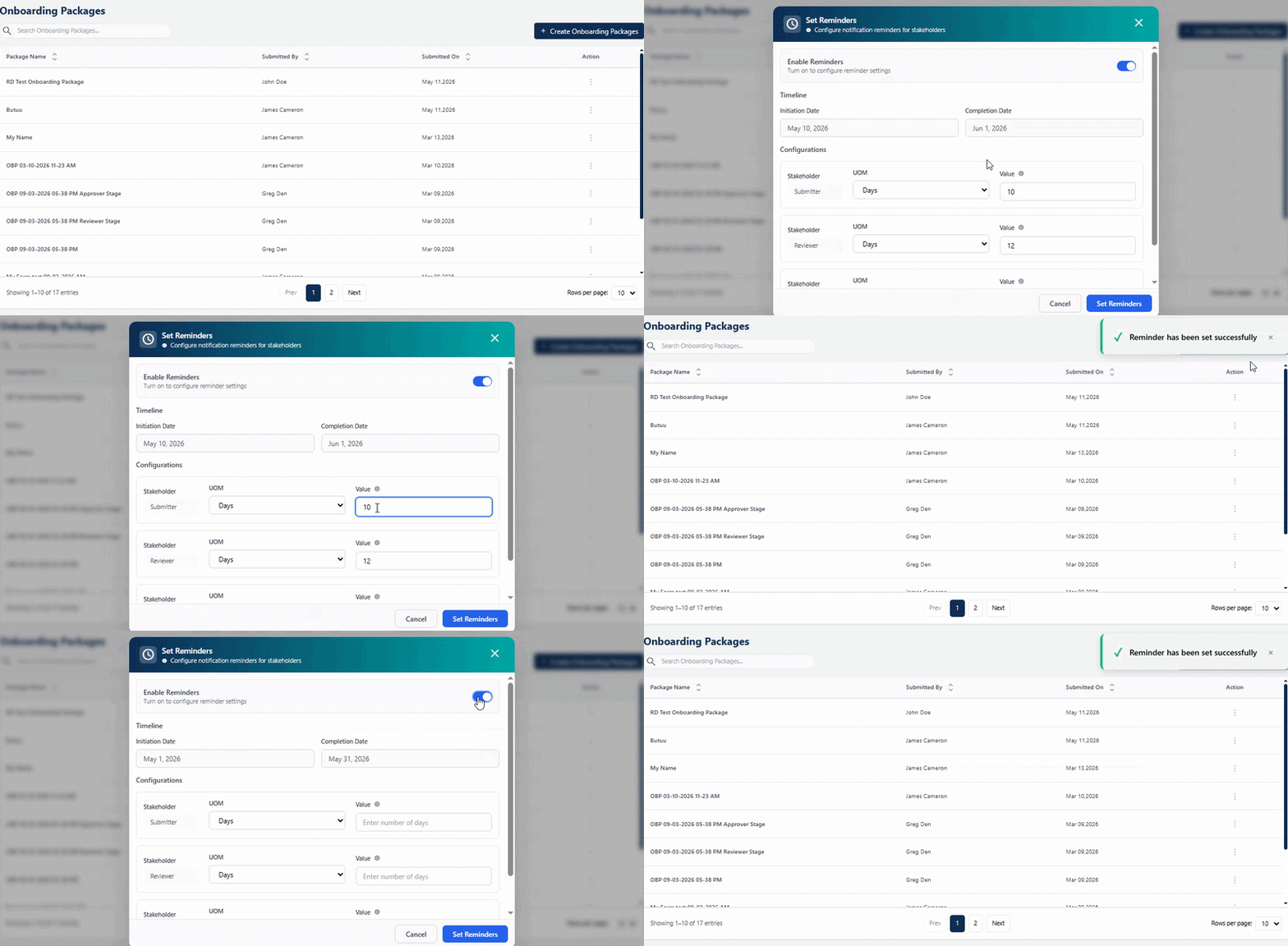 Fig: 41 - Demonstration of the reminders setting feature
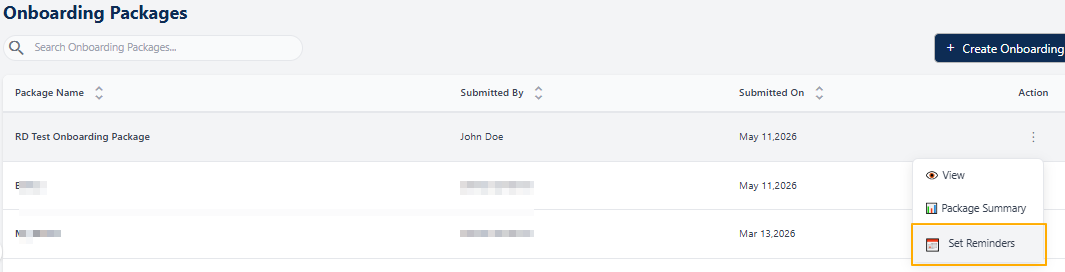 Fig: 40 - Clicking on the Set Reminders menu option
-
1Proceed to Reminder Configuration
- What it is: Opens the Set Reminders modal window for configuring reminder settings.
- Why it matters: Allows reminder setup before finalizing onboarding assignment.
- Typical actions: Click the Set Reminders menu option.
-
2Enable Reminders
- What it is: A slider toggle that enables reminder configuration.
- Why it matters: Activates the reminder workflow for stakeholders.
- Typical actions: Turn the slider ON to load Timeline and Configuration sections.
-
3Review Timeline Dates
- What it is: Read‑only initiation and completion dates inherited from Package Details.
- Why it matters: Defines the valid window for reminder calculations.
- Typical actions: Review dates and hover over the info icon next to the Value field.
-
4Configure Reminders for Submitter
- What it is: Configuration row for defining submitter reminder intervals.
- Why it matters: Ensures submitters are reminded to complete tasks on time.
- Typical actions: Select Days and enter a numeric value.
-
5Configure Reminders for Reviewer
- What it is: Reminder settings for reviewers.
- Why it matters: Prevents review delays.
- Typical actions: Enter the reviewer reminder interval value.
-
6Configure Reminders for Approver
- What it is: Reminder settings for approvers.
- Why it matters: Ensures approval actions are not missed.
- Typical actions: Provide a valid numeric reminder value.
-
7Validate Reminder Inputs
- What it is: System validation ensuring all required values are entered.
- Why it matters: Prevents saving incomplete reminder settings.
- Typical actions: Resolve missing or invalid numeric values.
-
8Save Reminder Configuration
- What it is: Saves and applies all configured reminder settings.
- Why it matters: Activates automated reminders for all stakeholders.
- Typical actions: Click Set Reminders after validation passes.
- What it is: A success notification displayed after reminders are configured and saved successfully.
- Why it matters: Confirms that reminder settings have been applied without errors.
- Typical actions: View the message to ascertain that success reminder has been set. You can close it. It closes automatically after a few seconds.
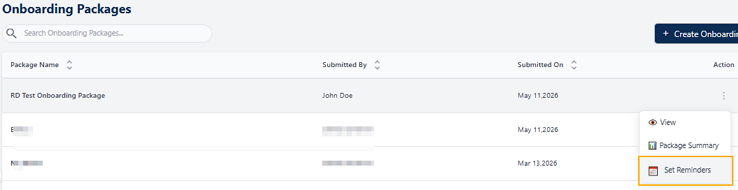 Fig: 42 – Set Reminders option
Here is the view of the loaded modal window. If the reminder is already set for the onboarding package then those get displayed here. For the sake of understanding the feature, consider the following cards which illustate setting reminder from scratch.
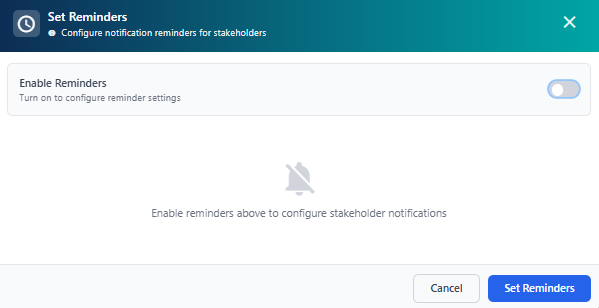 Fig: 43 – Set Reminders modal window default view after load
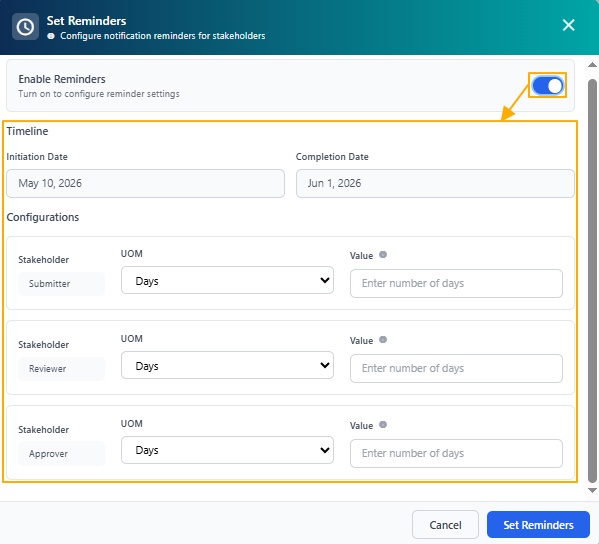 Fig: 44 – Enable Reminders slider toggle turned on
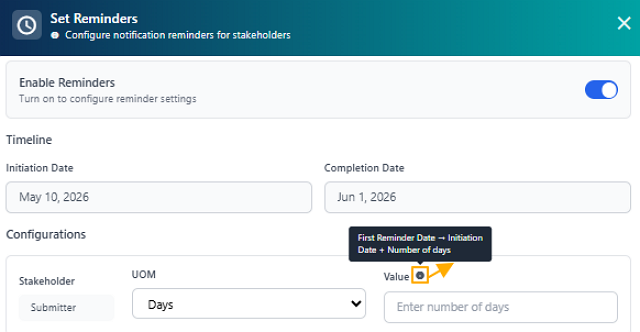 Fig: 45 – Timeline dates and reminder calculation tooltip
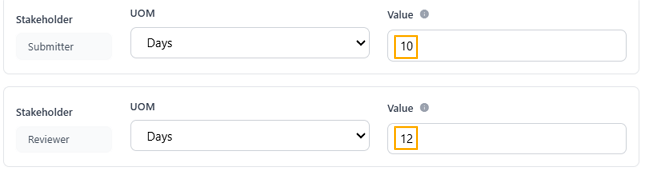 Fig: 46 – Submitter & Reviewer reminder configuration
 Fig: 47 – Reviewer reminder configuration
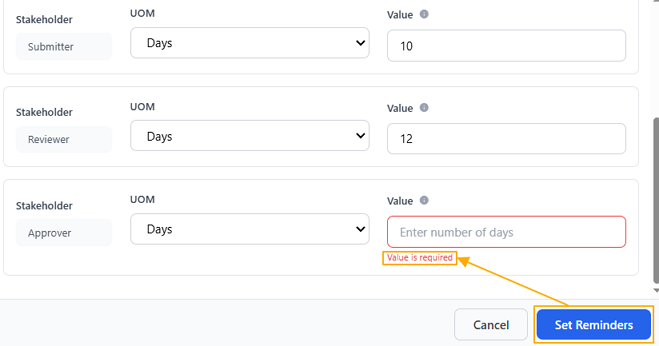 Fig: 48 – Approver reminder validation message
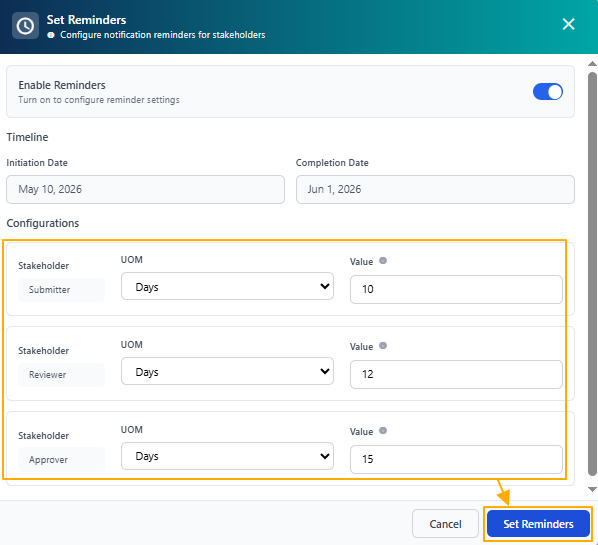 Fig: 49 – Validation resolved before saving reminders
 Fig: 50 – Confirmation message indicating reminders were set successfully
2.5. Pagination
The pagination controls allow users to move through multiple pages of onboarding package entries in an organized way. Instead of displaying all records at once, which can slow down performance and overwhelm the interface, the system divides entries into manageable pages. This not only improves loading speed and overall usability but also makes it easier for users to browse, locate, and manage Onboarding Packages within large datasets. Users can efficiently navigate to the exact set of entries they need without unnecessary scrolling by using the pagination options.
Pagination options are provided at the bottom-right, to navigate through multiple pages of entries, which populate the grid view as per the selected count of items per page. Selectable options are 10, 20 and 50. By default, the former is set.
The Previous and Next buttons can be clicked to navigate through various grid view pages.
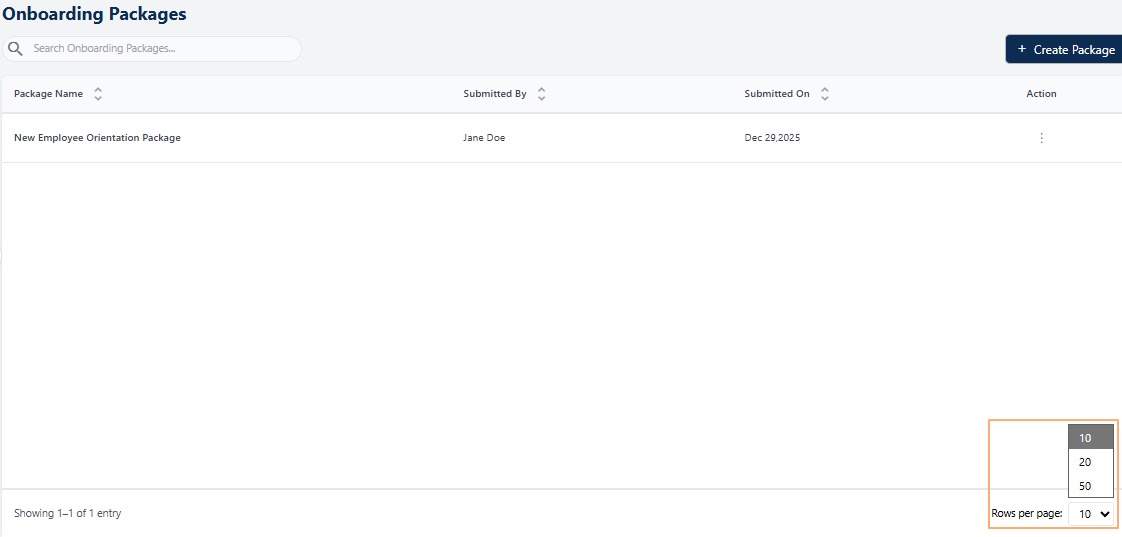 Fig: 51 - Pagination options